Digital asset management (DAM) is built for visual content. A good platform like Dash comes with an intuitive interface that gets you up and running quickly — but there's one thing no tool can do for you: organise your folder structure.
Get it right from the start and you'll save your team hours of frustration. Get it wrong and even the best DAM won't help you find what you need.
I head up the Sales and Onboarding team at Dash and work with new customers every day to set up their accounts. In this guide, I'll walk you through the best practices for building a folder structure that actually works — and share a ready-made blueprint you can adapt for your own brand.
Why does your folder structure matter?
Think of your folder structure as the architecture of your DAM system. Just like you wouldn't launch a product page without thinking about navigation and search, you shouldn't set up a DAM platform without thinking about how people will move through it.
Here's what a well-thought-out folder structure does for your team.
It makes your content easier to find
A clear folder structure acts as a visual map of everything stored in your digital asset library. Unlike general file storage tools like Google Drive or Dropbox — which were never designed for visual content — a DAM like Dash makes it easy to browse by folder, filter by tags, and search by keyword all at once.
It removes confusion around where to save things
When folders are vague or inconsistently named, people default to saving files wherever feels right to them. That leads to duplicates, misfiled assets, and the all-too-familiar "I'm sure we have a version of this somewhere" conversation.
A purposeful structure removes the guesswork, and ensures everyone knows where things live.
It keeps teams aligned
Different teams working from the same asset library can quickly become chaotic without a shared system. Here's a real example from one of our customers who were previously using SharePoint:
Their old workflow looked like this:
- The marketing team briefed the design team.
- The design team created the assets and saved them in their own SharePoint 'Design' folder.
- They then shared individual files with the marketing team, who saved copies in their own 'Marketing' folder.
The problem? There was no single source of truth. Nobody knew which assets had been shared or signed off, and finding anything took ages.
Here's how we solved it together in Dash:
- We organised folders around marketing campaigns rather than teams.
- Tags were added to indicate content type (e.g. 'banner ad', 'social post').
- The marketing team owned the folder; designers submitted work for approval directly in the app.
Once approved, assets were available to both teams in one shared location.
6 tips for organising your folders in digital asset management
Want to spend less time doing boring admin and more time creating content? Of course you do. Here are my tips for setting up good folder structures in a digital asset management tool (like Dash).
1. Focus on purpose-based folders
Your digital assets are resources you’ll use time and time again, so you should start by drilling down into ‘why’ an asset was created before building your folders out. What jobs need to be done with these assets? Who’ll be doing these jobs? From here you can create purpose-based folders that teammates will understand.
For example:
- Branding assets: These are visuals like logos, iconography and typography and they’re essential to your brand image. They’re likely to sit in a ‘Brand Materials’ folder which will be used by your brand and marketing team.
- Ad graphics: These are time-sensitive assets created for specific marketing campaigns. They’ll likely belong in a ‘Campaigns’ folder which might get shared with your paid media agency via a portal.
These top-level, purpose-based folders will lay the foundation for your folder hierarchy.
2. Be specific about your sub-folders
After you’ve picked your high-level folders, you can break them down into specific subcategories. Here, I recommend using specific folder names that clearly indicate what they contain. For instance, instead of ’Photography’, you could specify whether you’re filing ‘Lifestyle shots’, ‘Product packaging’ or ‘Hero imagery’.
Essentially you want to avoid ambiguous names which makes it hard for people to know where to save their new assets.
3. Use consistent naming conventions
Keep your naming consistent. If you have commonly abbreviated terms in your organisation, decide if you will choose the full term, or abbreviated term and stick to it. Or you could agree to use both synonyms in a folder name to improve search efficiency. Ultimately, consistency is absolutely key.
4. Create logical folder hierarchies
It's important to organise your folders in a way that matches how your organisation thinks about and uses your assets. I recommend avoiding creating layer upon layer of sub-folders.
The depth of your folder structure will depend on the size of your business, but keep in mind that a regular user shouldn't have to navigate more than 3-5 levels deep.
5. Use tags and fields
While in-depth folder hierarchies are helpful, they can make your structure more complex, especially when you have different categories competing with each other. For example, should you prioritise your product categories or file types?
There's no right or wrong answer here—both options have their advantages. However, including both in your structure can lead to duplicated effort across multiple branches.
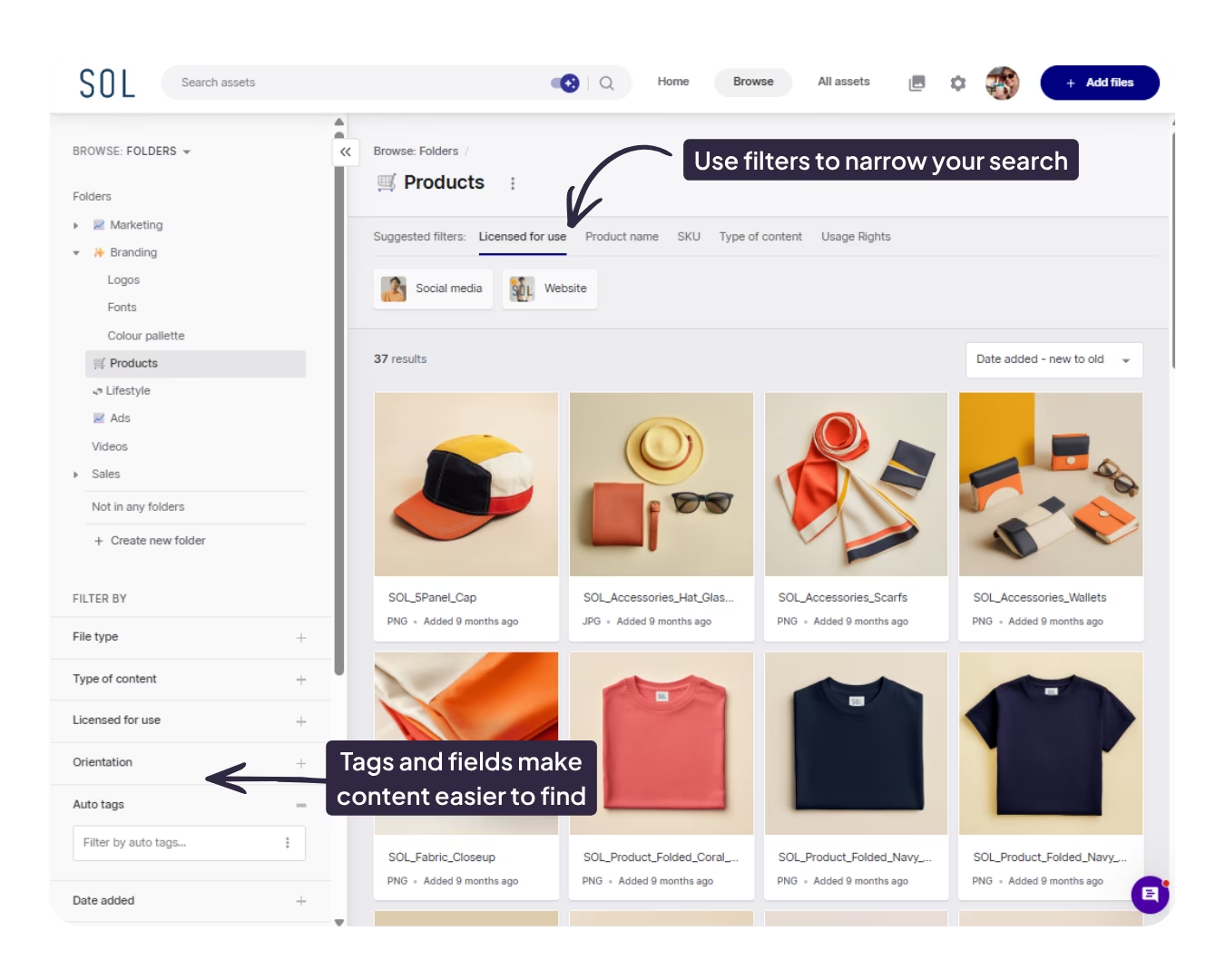
This is where a DAM tool is useful. It allows you to use tags and custom fields to filter your folders. Rather than having loads of folders and subfolders, you can search vertically by filtering different search criteria. Here’s an example of how you might search for your best-performing assets within a ‘Product’ folder in Dash.
6. Regularly review your structure
Finally, plan for the future and regularly review your structure. Naturally, as your brand grows and product lines expand, you’re going to be creating more content which more people will need access to. Here’s what you can look for in your review:
- Simplify your folder structure hierarchy: Look out for themes in your subfolders and make sure the overarching, top-level folder is broad and simple. Subfolders should have specific names and aim to be between 3-5 levels deep.
- Consistent folder and file names: See if you can spot any inconsistencies in naming conventions. Review and resolve these to ensure everyone is on the same page.
- Get rid of duplicates: If you notice repeating sub-folders across multiple branches of your folder structure, it’s a good indication that a filter could be used instead.
- Remove outdated assets: Are you hanging onto outdated content that won’t get used again? Archive or remove it. A good digital asset management solution like Dash will support version control to prevent archived and outdated assets coming up in search results.
- Give your teams access: Are there any new people using your DAM? Make sure they have access to the right folders to reduce the risk of misusing assets. You can set up groups and permissions in Dash to make sure people are seeing the most relevant content. This will make it easier for them to find what they need, fast.
A real-life template for building your folder structure
Ready to start planning your folder structures? To get you started, here’s an example of how a fashion retail brand might set up their folders in Dash. I’ll also include the different types of filters they might include to help whittle down search results.
%20(2).avif)
👉 This blueprint is based on some of our customer’s folder structures as well as the best practice tips I’ve listed in this article.
📂 [Top-level folder] Brand Materials (add filters for ‘file type’):
- [Subfolder] Logos
- [Subfolder] Icons
- [Subfolder] Brand Guidelines
- [Subfolder] Templates
📂 [Top-level folder] Products (add filters for ‘product category’, ‘type of content’, ‘SKU code’, and ‘usage rights’)
- [Subfolder] Spring Summer 26
- [Subfolder] Autumn Winter 25
- [Subfolder] Archive
📂 [Top-level folder] Community Content (add filters for ‘creator’ and ‘usage rights’)
- [Subfolder] Influencer content
- [Subfolder] UGC
📂 [Top-level folder] Marketing Materials (add filters for ‘creator’ and ‘date created’)
- [Subfolder] Social
- [Subfolder] Ad Campaigns
- [Subfolder] Lookbooks
📂 [Top-level folder]
Press (add filters for ‘product category’, ‘type of content’, ‘SKU code’)
- [Subfolder] Press Kits
- [Second subfolder] Sprint Summer 26
- [Second subfolder] Autumn Winter 25
- [Subfolder] Media Features
- [Subfolder] Behind The Scenes
📂 [Top-level folder] Events (add filters for ‘creator’, and ‘date created’)
- [Subfolder] 2026
- [Second subfolder] Name of the event May 2026
- [Second subfolder] Another event Sep 2026
- [Subfolder] 2025
- [Second subfolder] Name of the event May 2025
- [Second subfolder] Another event Sep 2025
💡The depth and width of your product line will influence how you want to structure your assets. If you have a smaller product line, you might want to consider a ‘Core products’ folder along with occasional seasonal collection folders that can be archived accordingly. Alternatively, if you have a larger product line that refreshes every season, you may wish to start with seasonal folders as they allow for a more granular organisation of assets.
How to set up your folders in Dash
Dash has been built to be super-intuitive, so it’s really easy to create new folders in Dash. However, if you need a hand, feel free to book a call with a member of our team.
We can advise you on the best way to set up your folders, tags and fields. And we can help migrate assets over from your previous system.
Alternatively, if you want to try Dash for yourself, book a 14-day free trial—no string attached. ✨

Emily Lamb is Dash's Product Manager. She's writes articles on how brands can save time and money with digital asset management tools like Dash.