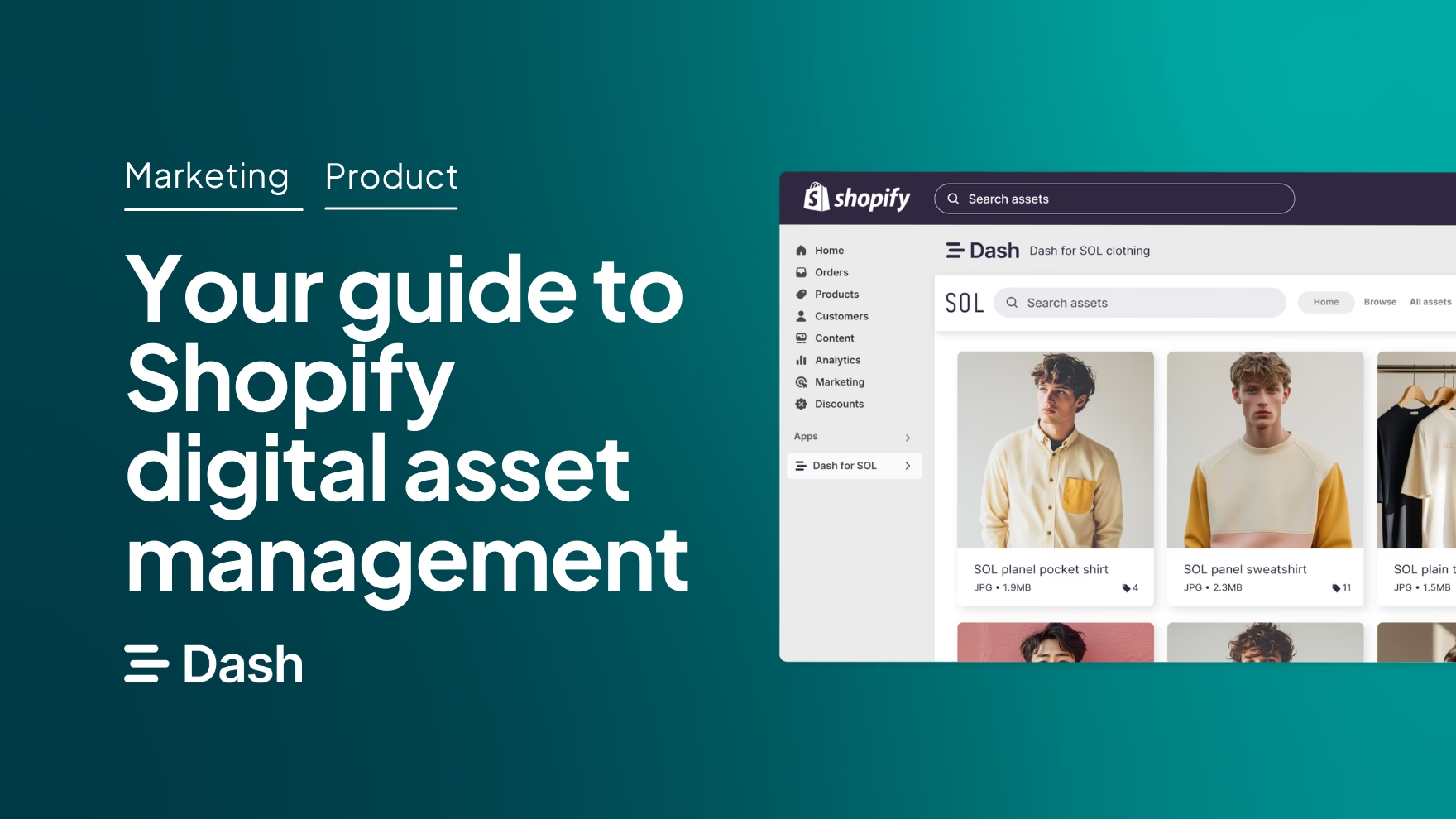
Shopify merchants and ecommerce managers, we see you. You've got great products, strong branding, and a photographer who's just delivered a stunning set of shots for your new collection. Launch day should be exciting.
Instead, you're uploading images to Shopify one by one, resizing every image to match your store’s requirements and constrained to updating your pages individually.
You didn't build a Shopify store to become a full-time digital file manager.
That's what Shopify digital asset management (DAM) is for. In this article, we'll walk through what DAM means for Shopify brands. We’ll explore why your current setup might be holding you back, and how the right tool can take the chaos out of getting products live.
Why Shopify's native file management tools aren't enough
Think about how a typical product launch works. Your photographer might deliver a tide of new product shots via a WeTransfer link, someone downloads the files, renames them, and drops them into a shared Dropbox folder. Your team reviews them over email, feedback gets lost in threads, and by the time the approved shots are ready, someone's already uploaded the wrong version to Shopify.
And then you need to get each asset live, which means each image is painstakingly optimized. Then they’re either uploaded one-by-one, or you find yourself wrestling with CSV imports that are fiddly at best…and broken at worst.
And if you’re not already tired of it all, Shopify's built-in file manager just makes matters worse. There's no way to search images beyond file names, no version control, and no way to manage approvals or organise files beyond a flat, scrollable list.
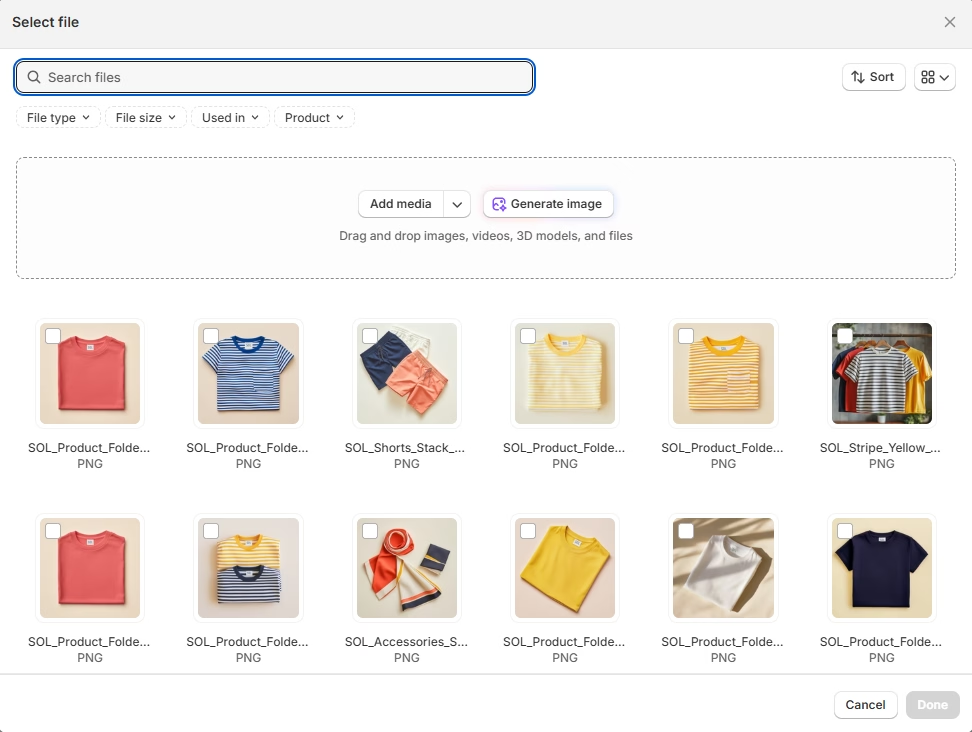
It’s for basic storage, not for the demands of a scaling brand managing hundreds of creative files.
All of this results in your product launches taking longer than they need to be. It's a slow drain on your time and your brand consistency, and it only gets worse as you grow.
But all of this file admin can be significantly reduced with a digital asset management solution like Dash. 👋
What is digital asset management for Shopify stores?
A digital asset management system is the visual HQ for your brand. It’s a central library where every product image, campaign file, brand logo, and video lives in one place. But unlike Shopify's file manager or a shared drive, a DAM is built specifically for visual content at scale.
For Shopify brands, that means:
- You can store and manage digital assets in one place. So product shots, campaign graphics, packaging files, and seasonal assets are all stored, organised, and searchable.
- It's actually built for your visuals, so you get large, clear previews of your assets instead of squinting at tiny thumbnails or decoding cryptic file names.
- You're always in control and can decide what's approved, who can access what, and which version of an asset is live. It means your brand stays consistent everywhere it shows up.
- The best DAMs integrate directly with Shopify and your wider creative stack. Take an ecommerce-specific DAM system like Dash (that’s us 👋). Our native integration brings your Shopify product catalogue into Dash, so you can tag creative against the products, variants and SKUs already in your store. Then Dash matches each image to the right product when you publish. It means you can quickly launch new products, whether you’re launching 5 or 500… (but more on that later!)
6 ways a Shopify digital asset management tool improves your workflows
A DAM sounds like a solid solution for Shopify brands needing to store and share content. But what does that actually look like in practice? Let’s take a look at some of the steps to launch a new product, and how Dash can make your creative workflow smoother.
1. Organise your entire asset library in one place
Before you can get your brand assets into Shopify, you need to be able to organise and find them. That sounds obvious, but for anyone who’s been relying on Google Drive and Dropbox to store assets, you’ll know the pain.
With Dash, every product image, campaign file, and piece of brand content lives in one central, searchable library. And it’s searchable because you can organise in a way that works for your brand.
Dash gives you three ways to keep your library organised:
- Folders: These need little explanation. You can create as many folders as you like, whether that’s for different teams or campaigns. The key thing about Dash, however, is that you can have the same assets across multiple folders without the need for duplication. Your ‘blue sweater’ can live in your marketing and your ads folder.
- Tags and auto tags: These are what help you surface content, no matter what folder they’re living in. When you upload an asset to Dash, the system will scan your image and tag any objects it detects. This makes it easy to search later on. Simply type on a word like ‘blue top’ and the tags will pull up relevant results.
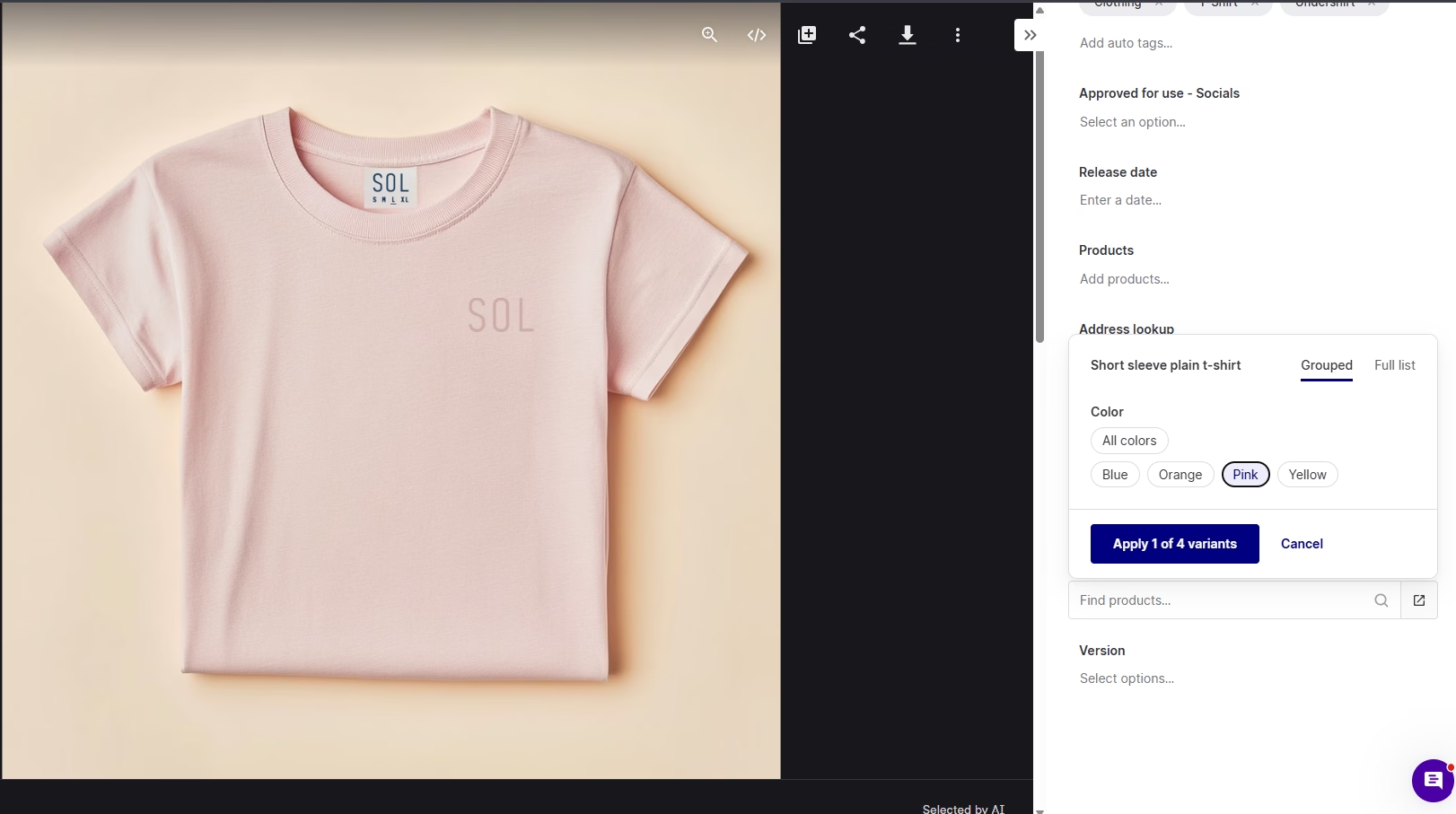
- Shopify Product Field: This connects your Dash library to your Shopify catalogue. Connect your store, and Dash brings across every product name, variant and SKU, ready to tag against. There’s no need to rebuild your product list in Dash or keep it up to date as ranges change, because Shopify stays the source and Dash follows its lead. Tag each image against its product or variant once, and anyone can find it by name, variant or SKU. It also creates a direct link between your asset library and your Shopify store that pays off at launch time. 👇 More on that in section 5.
2. Search by product or SKU
It’s likely multiple teams will be accessing your content library, including your marketing and ecommerce teams. You may have different ways of searching. For example, marketing might search by product name like ‘yellow shirt’, and ecommerce teams use SKU codes.
Because your assets are tagged against your Shopify catalogue, everyone can search the way they think. Your marketing team searches for the yellow shirt, your ecommerce team searches for YS-1042-M, and they both land on the same approved images. Tag each asset once, and it’s findable by product name, variant or SKU.
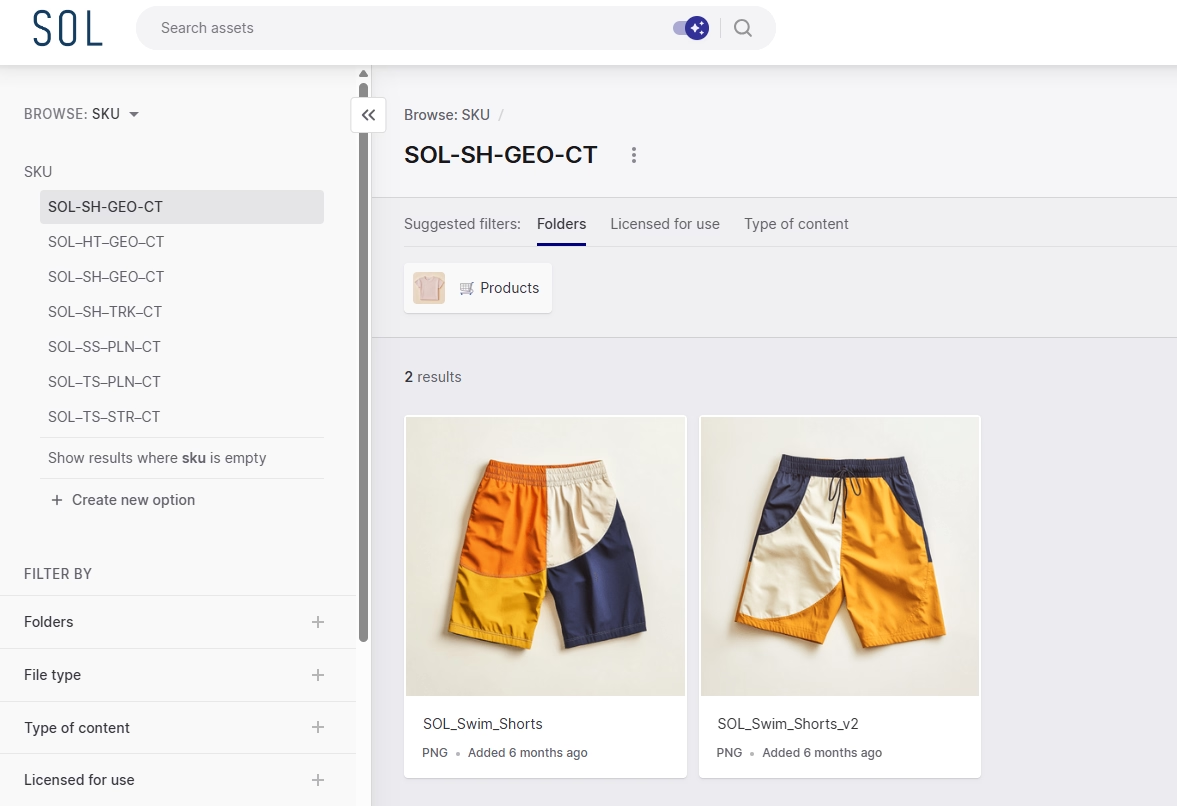
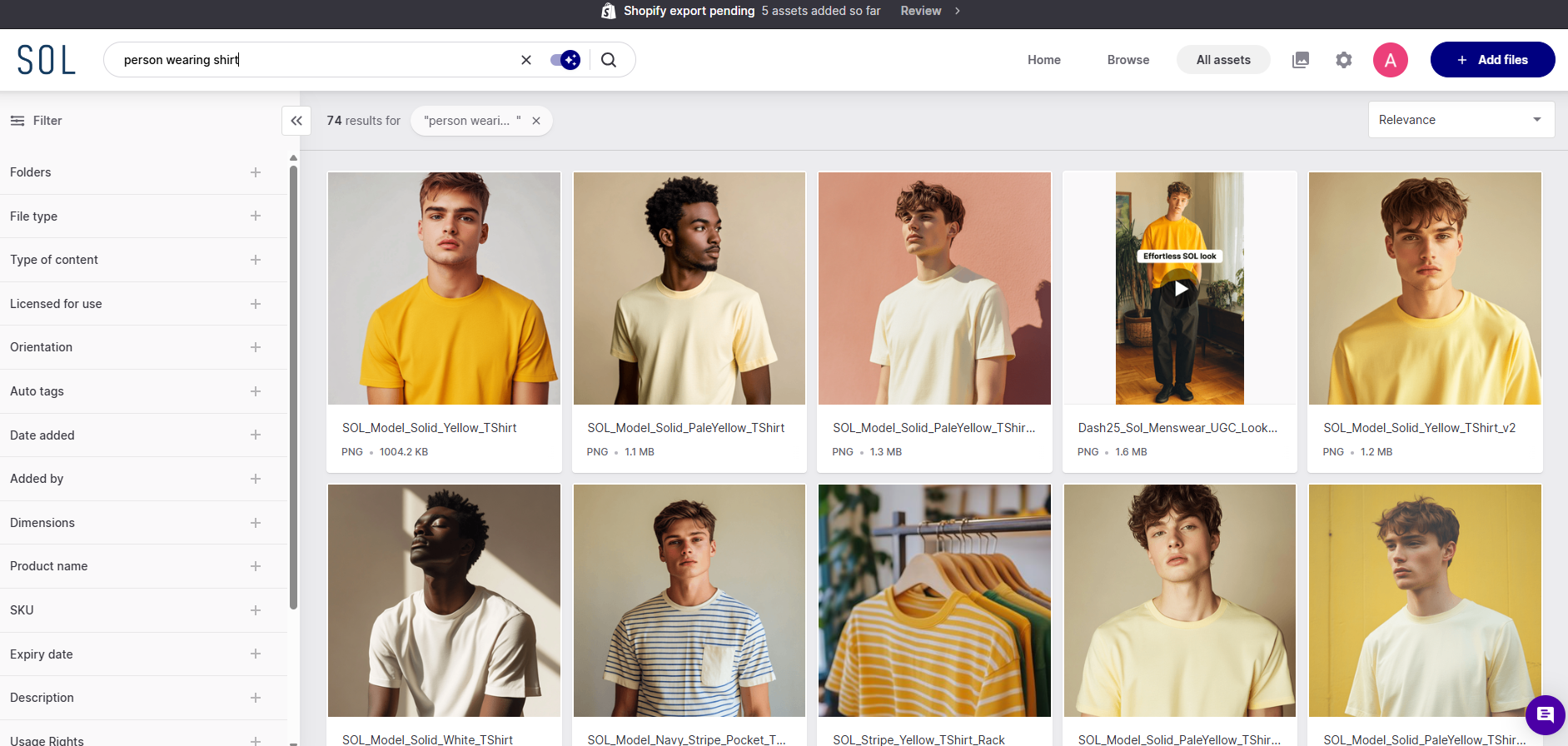
And if someone has forgotten to add to your content? No problem, Dash’s AI search means you can just type a phrase like ‘person wearing shirt’ and Dash can quickly serve relevant assets.
3. Collect content from your photographers
You’re working with photographers—either in-house or freelance—to help you capture on-brand product shots. You can set up your photographers as ‘contributors’ to your Dash library. They can upload content to a holding area, where you can go in and add feedback. This means you can give the sign-off on new product content, add comments, approve content and reject creative that needs more work.
If anything needs reworking later down the line, your photographer can upload the revised version directly on top of the original. The old version is archived automatically, so you can revert back if needed. This type of version control means everyone in your team can be confident that everything in your Dash is only the most updated version.
4. Update existing product pages without leaving Shopify
Once your assets are in Dash, keeping your Shopify store up to date becomes a lot simpler — starting with day-to-day updates.
Swapping out a new image after a seasonal reshoot no longer means downloading files, resizing and jumping between tools. Dash works directly inside Shopify, so you can open any product page, browse and search your Dash library from within Shopify, select the image you need, and it drops straight into the product page.
5. Bulk-launch new products on Shopify
For larger launches, Dash takes the manual grind out of getting a full collection live. If you’ve tagged your assets against your Shopify products, you can search or filter by product name, variant or SKU to pull up everything for the launch in one go.
Then select all and go to Share > Export to Shopify. Here you can resize and crop your assets to your store's required dimensions if needed.
Next, Dash will ask you to log into your store and automatically match each asset to its corresponding product. Review the matches, set the image order, and hit publish. Dash adds your images and videos to each product’s media gallery in Shopify.
6. Give retailers and wholesalers easy access to new product collections
If your Shopify brand sells through online retailers or wholesalers, updating partners with information on your new collection is an important part of your launch.
With Dash, you can give every partner access to the latest approved assets without opening up your entire library.
Portals are the key. They're branded, public-facing versions of your Dash that you can tailor for each partner or campaign. You choose which folders to share, set download permissions, and add custom messaging. It means when a new collection drops, partners can find exactly what they need, and download it straight away without contacting you.
Plus, you can view portal analytics to see which partner has downloaded what assets. This is particularly handy if you're working with many retailers and need to know whether they're finding your digital content useful.
The best Shopify DAM system for your brand
There are plenty of digital asset management tools out there, but not all of them are built with Shopify brands in mind. Some are geared towards large enterprises with complex workflows. Others focus more on document management than visual content.
If you're running a Shopify store, you'll want a DAM solution that's:
- Easy to use: Your whole team should be able to get up and running quickly — not just your most technical members.
- Built for visual content: Your product shots and campaign imagery should look great in the system. Big thumbnails and clean layouts make a real difference to how your team browses and uses assets.
- Connected to Shopify: A native integration means assets move from your library to your product pages without any manual exporting or file juggling.
- Affordable for scaling brands: You shouldn't need an enterprise budget to manage your assets properly.
That's why Shopify brands like Passenger, Ethnotek, COAT and Goodrays choose Dash. It's built for visual content, simple to set up, and connects directly with Shopify so your team can get products live faster. You can have it up and running in an afternoon, with your assets organised, tagged, and ready to push to your store.
Not sure where to start? Download our free DAM comparison worksheet to weigh up your options, or jump straight in with a 14-day free trial of Dash.
Shopify DAM FAQs
Does Shopify have a built-in DAM?
Shopify has a basic media library for storing product media, but it's not built for asset organisation at scale. There's no advanced search, no metadata tags, no version control, and no way to manage different versions of files. As your Shopify catalogue grows, its native tools quickly become a bottleneck.
How does Dash integrate with Shopify?
Dash connects with Shopify in three ways. First, it brings your Shopify catalogue into Dash, so you can tag creative by product, variant or SKU without rebuilding your product list. Second, for day-to-day updates, you can browse your Dash library from within Shopify and drop assets straight onto product listings. Third, for larger launches, you can bulk export assets to their matching products across your catalogue in one go.
Can I use a DAM across multiple platforms?
Yes. One of the biggest benefits of DAM tools like Dash is that your assets are easily accessible across different platforms — your Shopify store, social channels, email campaigns, paid ads, and retailer sites. Your entire team works from the same centralised hub, so your brand stays consistent wherever it shows up.
How does a DAM help with product variants?
When you’re managing a Shopify catalogue with multiple variants (different colourways, sizes or configurations), keeping track of which images belong to which product gets complicated fast. Dash pulls your variants straight from Shopify, so you can tag each asset against the exact variant it shows and find it later by variant name or SKU. When you export, Dash adds images to the right product’s media gallery. It won’t assign them to a specific variant image in Shopify, though.
Can external partners access our DAM library?
Yes. Dash lets you create branded portals — curated, public-facing versions of your DAM library that you can share with retailers, wholesalers, and relevant stakeholders. You stay in full control of which folders are visible and what can be downloaded, so partners always have access to approved, up-to-date marketing content without being able to access your entire library.
What file formats does Dash support?
Dash supports all the file formats a Shopify brand typically works with — JPEGs, PNGs, TIFFs, PSDs, AI files, PDFs, video files, and more. Whether you're storing high quality images for your product listings or layered design files for your marketing campaigns, everything can live in one place.
How does a DAM save time during a new campaign or product launch?
A DAM eliminates the manual work that slows down launches. Instead of digging through folders, chasing photographers, and uploading assets one by one, you can find files instantly using advanced search and metadata tags, resize images before export, and push assets directly to Shopify in bulk. What used to take days can be done in hours.
Do I need to recreate my Shopify product catalogue in Dash?
No. Connect Shopify and Dash brings across your products, variants and SKUs automatically, ready to tag against. Shopify stays the source of truth, so there’s only one product list to maintain. If you’ve already tagged assets with your own product fields, our customer success team can help you move them over.
Is Dash available on the Shopify App Store?
No, Dash isn't available in the Shopify app store. If you'd like to connect to Shopify, head to the integrations page in your Dash settings and follow the steps for set-up.

Amy Burchill is the SEO and Content Manager for Dash. She works with ecommerce experts to create articles for DTC brands wanting to improve their campaigns.