
As a growing business, you know how hard it is to keep track of all your digital files. You’re juggling documents, spreadsheets and PDFs. And you’re trying to organise visual content like product images, videos, brand guidelines, graphics and more.
Managing all this is chaotic. Your team members are probably spending more time organising and searching for documents (like 80s librarians) instead of doing tasks that actually help your brand grow.
That’s why you need to pick a tool to help ease the pressure off document management. Dropbox and Google Drive are both pretty solid file management applications, but which one do you choose?
Whether you’re already using Google Drive or Dropbox and want to switch tools, or you’re new to file management software, we'll lay out all the facts so you can figure out which tool works best for your business.
We’ll also show you a better alternative for visual content management because—spoilers—Drive and Dropbox are not the tools for the job. 👀
What is Dropbox?
Dropbox is a cloud storage provider. Think of it as a digital vault where you organise, store and share important files for your ecommerce business, including pitch decks, presentations and documents.
Dropbox syncs across platforms and devices, allowing you to access your files anywhere and anytime—even without internet access.
Here are some Dropbox features:
- File transfer: Dropbox offers a large file transfer service called Dropbox Transfer, which allows you to send files up to 100GB in size to non-Dropbox users.
- Local file storage: Dropbox creates a local storage folder on your computer's hard drive and saves copies of your files to it. This is a great way to keep obsolete files instead of deleting them permanently.
- Version history: Dropbox keeps track of all the previous versions of your files, so you can always revert to an earlier version if necessary.
- Productivity tools: Dropbox offers several productivity tools that help you work more efficiently. For example, Dropbox doc scanner instantly converts notes into shareable documents. And you can use Dropbox Paper to create to-do lists and keep track of tasks.
- Integrate with digital asset management tools: Dropbox integrates with our digital asset management tool, Dash, so you can easily move any visual assets—like product images and brand logos—from Dropbox into a better-organised home for your visuals. (Scoot down this article to learn more about Dash).
What is Google Drive?
Google Drive is Google Workspace’s cloud storage system. It's where all the files created and shared in Google Docs, Google Photos, Google Meet and other Workspace apps are automatically organised and stored.
If your business already runs on Workspace, then choosing Drive for file management is a no-brainer. No more spending time downloading and uploading files manually; your data syncs in real-time, and you can access it from any device.
Google Drive has additional features like:
- Multiple file sharing options: You can add collaborators to your files directly or share with them via secure URLs.
- Access and permissions: Drive lets you control what authorised people can do to your files. You can allow them only to view files or grant them permission to modify and add comments to documents.
- Seamless integrations: Google Drive also integrates with many third-party apps that you already use for your business. For example, you can sync your Drive with project management tools like Asana and Trello to manage files and notifications directly. And, like Dropbox, Drive integrates with Dash, making it really easy to transfer images into a central location that makes searching for images a breeze—but more on that later.
- Offline access: Drive lets you access files without an internet connection. For example, you could be working in Google Sheets and your internet goes down. It will save any updates you make offline and upload them to the cloud when your internet access is restored.
Dropbox vs. Google Drive: Features
Let's dive deeper into the features of both file management tools so you have a better idea of how they compare.
As you can see, both tools size up pretty well when it comes to file management. But you probably have loads of images and videos too and, unfortunately, neither tool is ideal for managing these types of files. Instead, you’re better off using a DAM. You can read more on the features of digital asset management for visual content. (Or continue reading to learn more about Dash).
Dropbox vs Google Drive: File management
Dropbox and Drive excel at different aspects of file management.
Dropbox organises files better
Dropbox automates file organisation. You can automatically add files to folders (and subfolders) based on keywords, timeframe or activity. You only need to set up the rules for a specific categorisation; the app does the rest. This saves the time you would have otherwise spent adding files to folders manually.
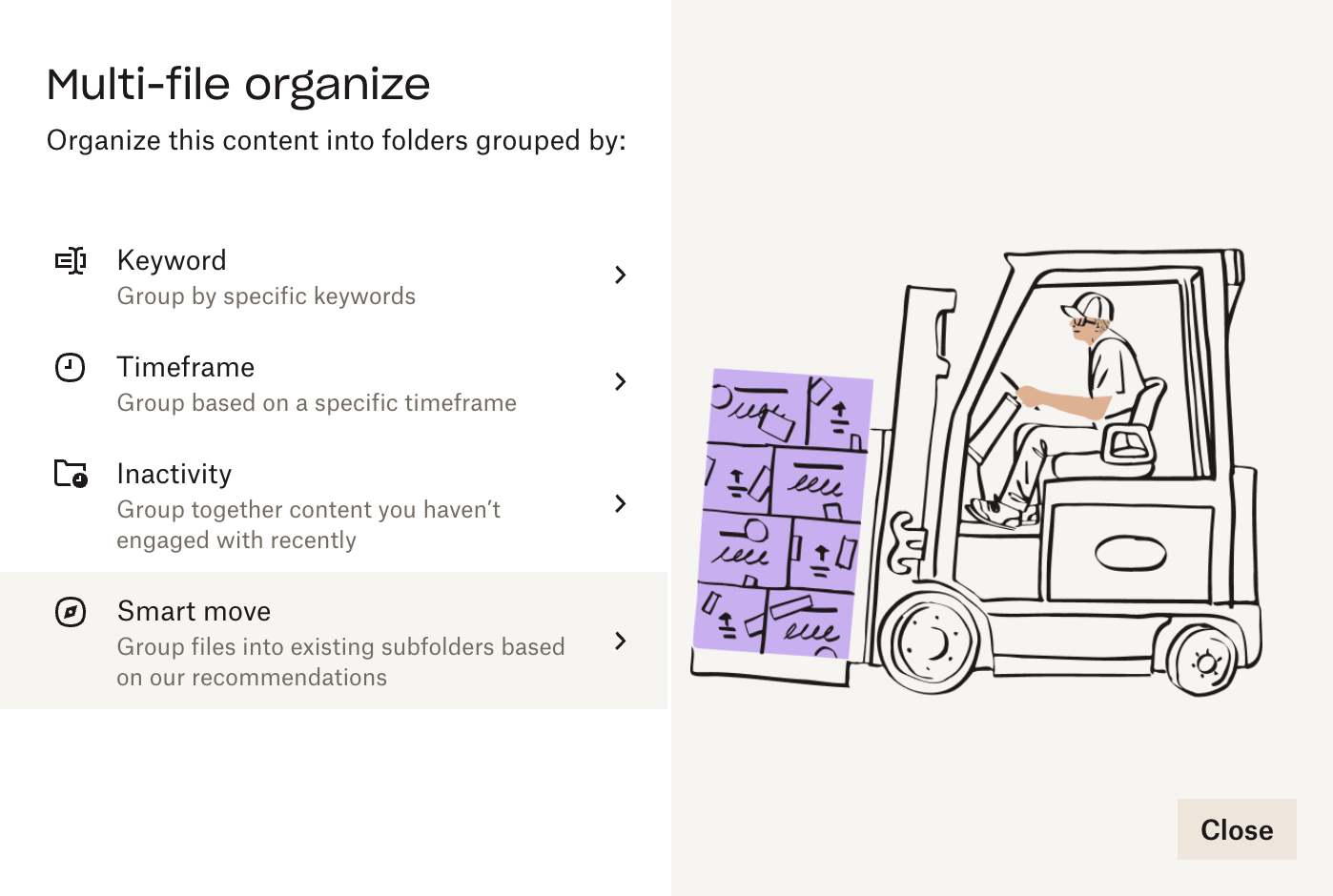
It also helps you find content faster. Say you organise your folders by product line and need to find a document containing SKU codes for your male clothing product line. You’ll search for it in your men’s clothing document folder instead of combing through all of your Dropbox files.
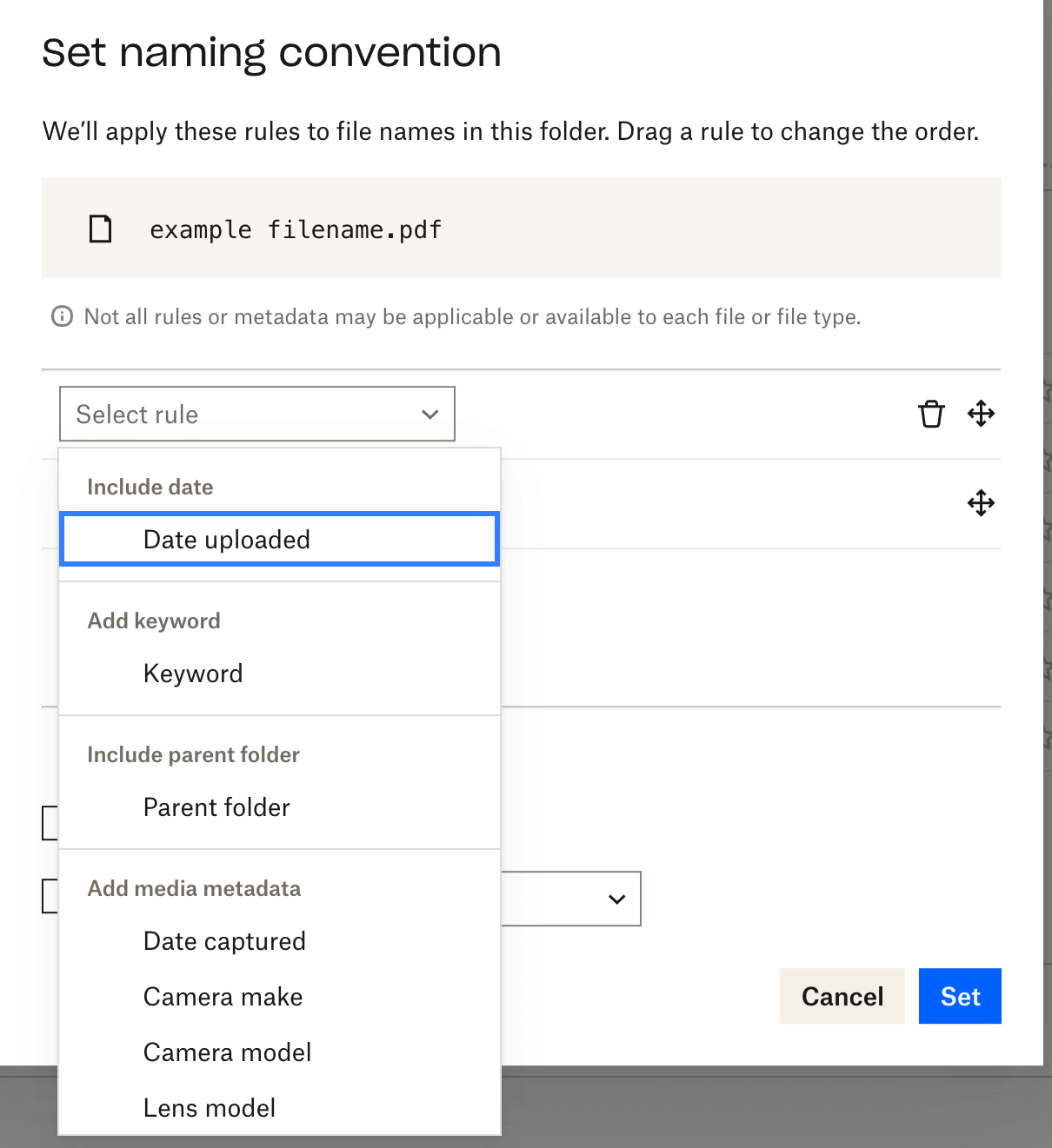
Dropbox can help you standardise file naming, which is handy when lots of people are uploading to the same workspace.
For example, with folder-level automations, you can set rules so that files added to specific folders are automatically renamed using a consistent format (like a keyword plus the upload date).
Google Drive has a more advanced search function
It’s one thing to save files; it’s another to find them on time when you need them. The last thing you’ll want is to delay a product launch because you can’t find the document in your file manager.
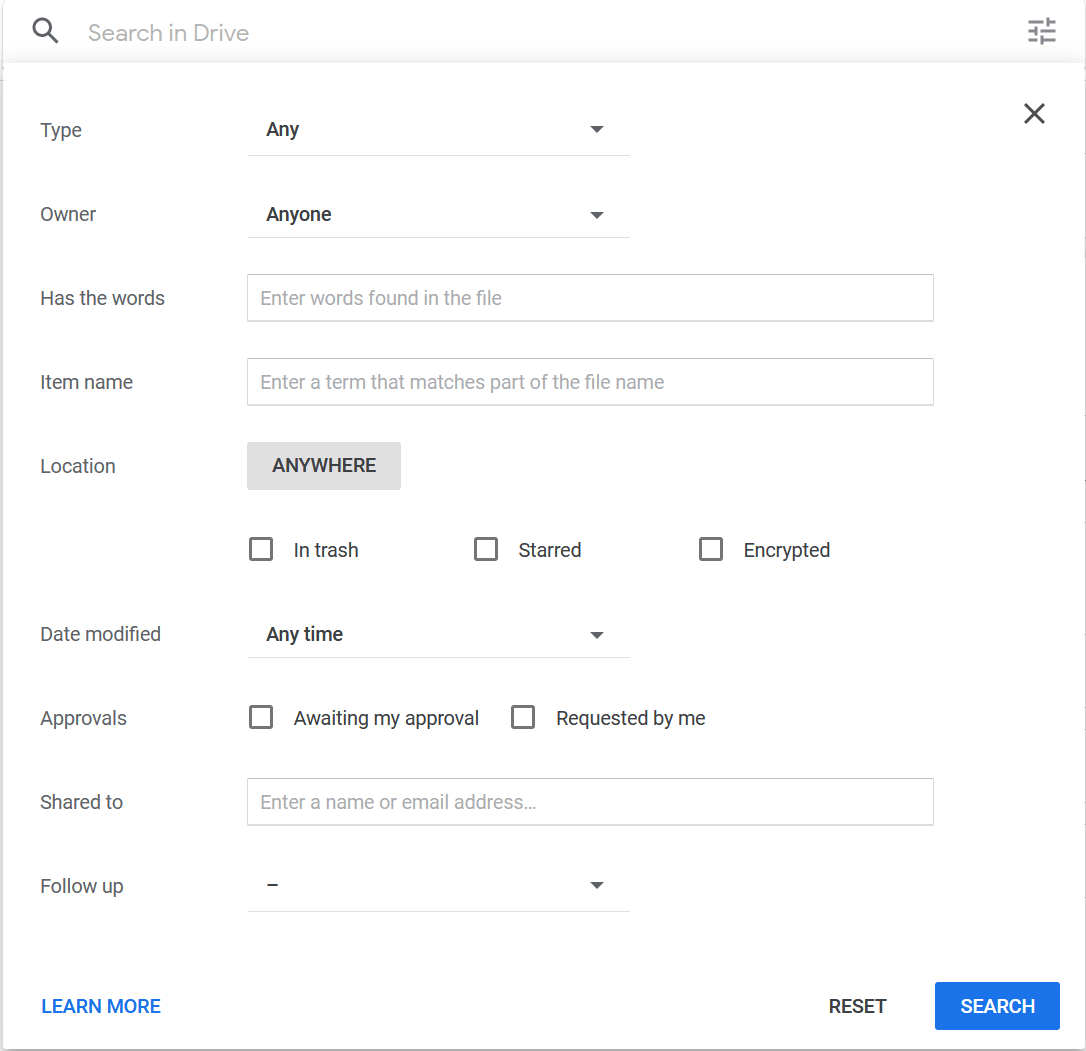
Google Drive gets this. It lets you filter your search to find granular results fast. You can search for content by file type, location, date, keywords and the like. You’re not restricted to searching for files by only their names.
Neither Google Drive or Dropbox are good for visual file management
As an ecommerce company, you must be wondering how Drive and Dropbox work for visual asset management. After all, you’re handling loads of images and videos every day. Wouldn’t it be nice to organise them in the same place as the rest of your files.?
Don’t fall into this trap. This is one of the main reasons ecommerce brands like COAT Paints and Goodrays started looking at Dash. They realised Drive and Dropbox wasn’t up to par for organising and sharing all the visual content they were creating.
In short, Google Drive and Dropbox aren’t built for visual content management. Both tools excel at general document management, but that’s where it ends. If you try storing your visual assets in Google Drive or Dropbox, you’ll discover that:
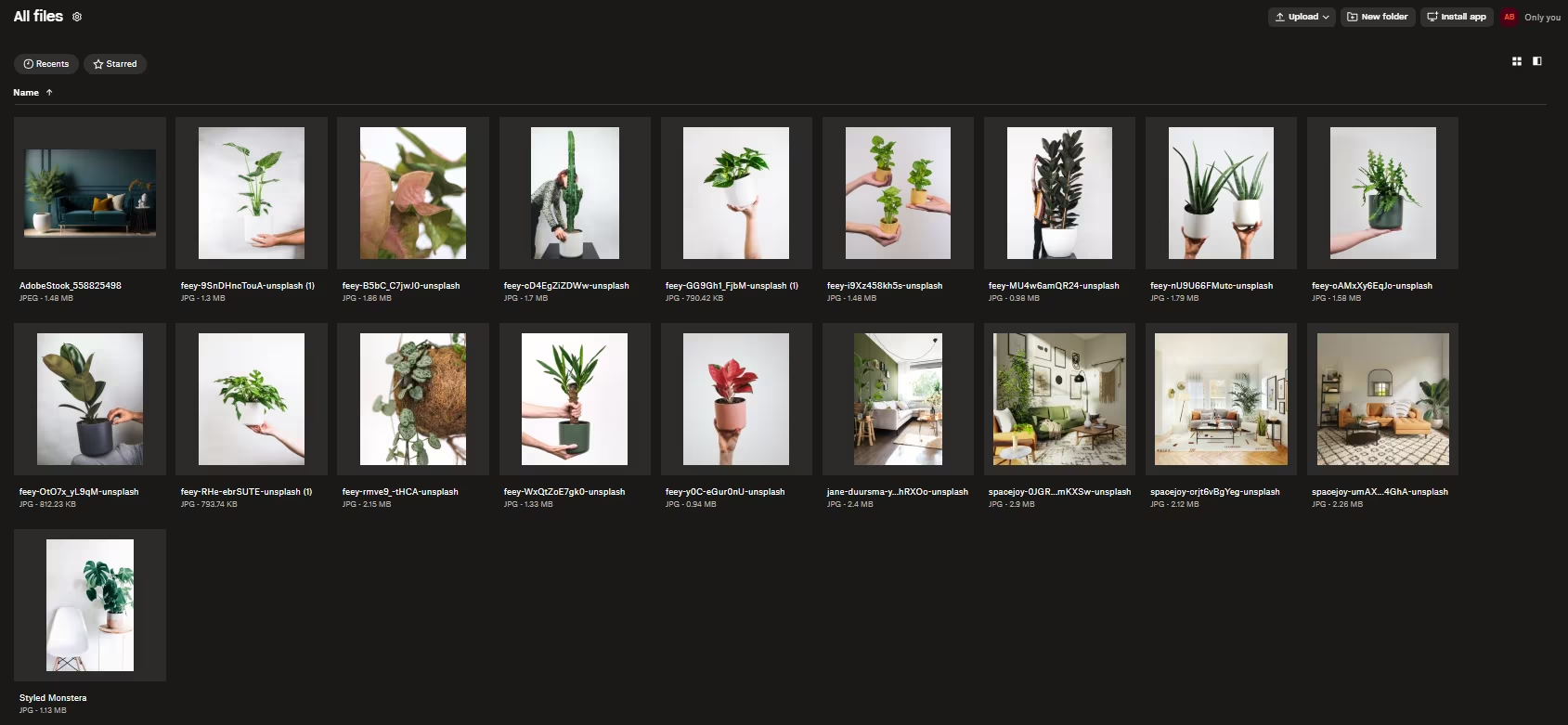
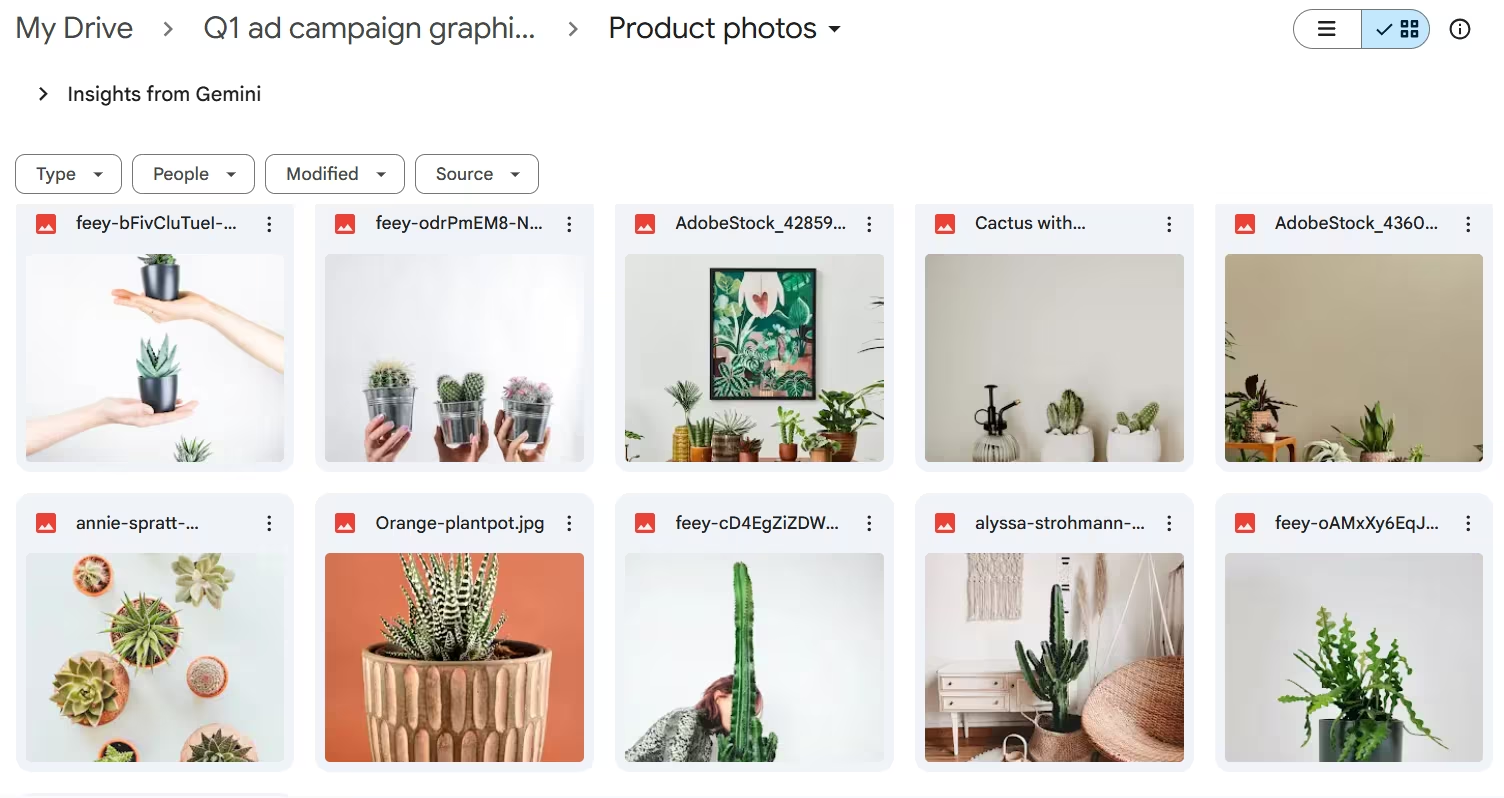
- The interface is clunky: You cannot organise and view images in a gallery. What you get are generic file thumbnails that hide the aesthetics of your visual content.
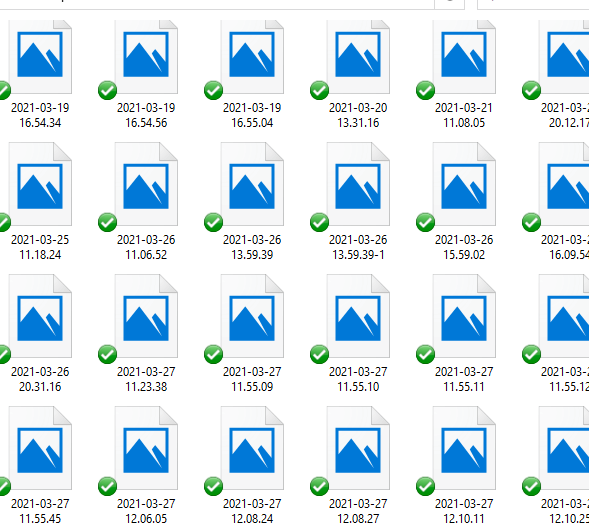
- The search function is basic (yes, even for Google Drive): You can only search for images and videos using their exact file names. Drive and Dropbox do not allow you to search for the content of your images, so you have to make do by opening up each individual image file before you find the one you want.
- It’s hard to share images with people outside your organisation: You can create and share folders containing specific images. But as you add new images to the folder and existing ones get buried under them, it becomes harder for collaborators to find the assets they need on time.
That’s why you need a tool built for digital asset management to do your visual content justice: like Dash.
Dash makes it easy for you to organise, share and deploy your visual content fast. Think of it as a central, searchable library for all your digital assets.
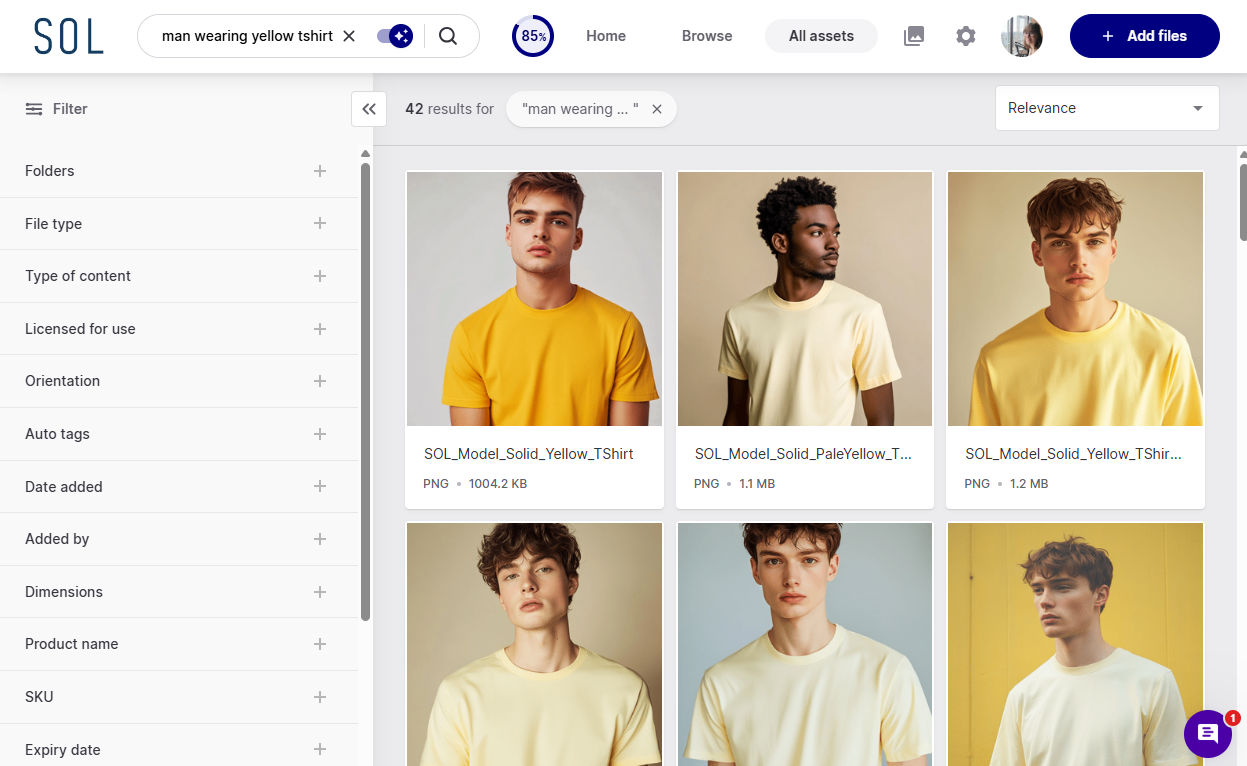
When you add a new image to your Dash, it will scan the content and attach matching searchable tags, which makes your image easier to find. You can also search for the actual content of your images—like cactus or chair—not just their file names.
.png)
Ready for a better way to manage your images and vidoes, but unsure what tool is best for you? Download our digital asset managemenet worksheet to find the best DAM for your brand.
{{dam-comparison="/blog-components"}}
Dropbox vs Google Drive: File sharing
Dropbox and Google Drive have pretty similar sharing basics. In both tools, you can share individual files or whole folders, invite specific people as collaborators, and control permissions (like view, comment, or edit). You can also generate share links for quick access.
Where they start to differ is how they handle large transfers.
Google Drive supports uploads up to 5TB per file (as long as you have enough storage available), and you can share those files via a link, but it’s not designed as a 'send a huge batch to anyone' transfer tool in the same way.
Dropbox, on the other hand, offers Dropbox Transfer, which is built specifically for sending large files via a transfer link — with size limits that depend on your plan (often up to 100GB on higher-tier plans). Recipients can download the transfer without needing a Dropbox account.
But when you’re sharing lots of images and videos, big one-off transfers can still be a pain, especially if you’re constantly adding new assets, or you’re sending to partners who need to browse and pick what they need.
That’s where a DAM like Dash is a better fit. Instead of shipping huge folders back and forth, you can share a link to a curated set of assets, so recipients can preview, search, and download exactly what they need. And if you work with resellers or agencies regularly, you can set up a public portal that gives them a searchable, always-up-to-date library.
Just check out how the watering can brand Haws uses portals to help retailers sell more of their products.

Learn more about how you can help your retailers sell more products using Dash Portals.
Dropbox vs Google Drive: Ease of use
Dropbox packs too many features and functions into one tool, which makes it difficult to use. As one Dropbox user said:
“There’s so much unwanted additional functionality on top of simple file sharing that the interface is now confusing and inaccessible. It's very difficult to do the simplest things like copying a link to a file in my Dropbox so I can paste it into an email for someone.”
Google Drive, on the other hand, is solely optimised for file sharing and storage. You won't have to navigate through unnecessary features like task management and screen sharing to create folders or share files with your team.
It’s worth noting, however, that neither tool has a particularly inspiring interface. Whilst this isn’t a problem if you’re solely managing document files, if you’re storing images it's really hard to navigate through all the tiny thumbnails. Drive in particular gives you very little visibility on what image is contained in each of your files. And it’s hard to find an image if you can’t remember the file name. As one of our customers, Filling Pieces can testify:
“Google Drive is just not very visual. It’s messy. … When we were using Google Drive, there were no naming conventions. There were too many people uploading content at the same time. I decided it was time for a completely new system with a really good UX. I wanted to be able to type in the product name, see results and order by category. ”
So for visual content, you’re better off choosing a tool that does your visuals justice, like Dash. Here’s a peek at the UI for Dash, Drive and Dropbox.
Dropbox
Google Drive
Dash
Dropbox vs Google Drive: File synchronisation
Dropbox has a faster sync speed than Google Drive due to its LAN sync feature.
When you have multiple devices linked to the same Dropbox account, and they are all connected to the same local network, Dropbox allows these devices to sync files with each other directly over the local network rather than going through the cloud servers. This makes real-time collaboration faster. Team members can access and work on the same files without having to wait for lengthy downloads or uploads.
Dropbox also uses block level sync to synchronise files between your devices and the cloud. When you edit a file, Dropbox only uploads the changed blocks—not the entire file, as is the case with Google Drive. This significantly reduces the amount of data transferred, which speeds up the sync process and saves bandwidth.
Dropbox vs Google Drive: Security
Both Dropbox and Google Drive offer strong security measures. However, there are some advantages to Dropbox's security.
Dropbox uses 256-bit AES encryption for data in transit (when you're creating, uploading or downloading files) and at rest (stored data). 256-bit AES encryption is the strongest type of encryption available, and it means that your data is scrambled into unreadable gibberish before it is stored on Dropbox’s servers.
Drive, on the other hand, only uses 256-bit AES encryption for data in transit. It secures stored data with 128-bit encryption which isn't as powerful as 256-bit AES encryption.
And if you're wondering about Dash's level of security, know that we follow multiple information security best practices and are regularly backed by an independent, expert assessment to make sure your data is properly protected. So your important brand images and videos will always be protected.
Dropbox vs Google Drive: Pricing
Dropbox and Google Drive are affordable, but Google Drive is the cheaper option. Let’s take a closer look at both.
Dropbox pricing
Dropbox has a free plan that offers 2GB of free storage. It also has six paid plans starting at $11.99 per month. With a paid plan, you'll enjoy features like 2TB or more storage and multi-factor authentication. You can choose from a selection of pricing plans, depending on your business's size and needs.
Google Drive pricing
If you need more storage space on a free plan, then Google Drive might be the better option. You'll get up to 15GB of free storage shared among all your Workspace apps. This is ideal for solopreneurs and freelancers storing only a handful of files.
But, as a growing business, you likely have larger data storage needs. In that case, you can purchase a Google One plan starting at $1.99 per month for 100GB of storage or upgrade your Workspace account to a business plan.
Dropbox vs Google Drive: Which is best for visual content management?
Well, neither! You probably get that Drive and Dropbox are no good for your images and videos by now. But, in case you’ve skipped to the end of this post—it’s super important you use a DAM for your visual content. That’s things like product images, videos, user-generated content, brand guidelines—you name it—they should all be living in a digital asset management tool.
As well as providing a place to manage, find and organise your assets, you’ll also get:
- Aesthetically-pleasing image previews 🤩
- A public portal for sharing content with freelancers, the media and other external collaborators
- The ability to organise images by file format and size
- Personal collections for related images and videos
- The ability to crop and resize images to match different content platforms—like your website and social media.
Best of all, you’ll get all features and unlimited users starting at just £79/$99 per month.
Most of our customers actually started with Google Drive and Dropbox but got frustrated with these tools’ limitations. Take online furniture brand, RJ Living, which housed its visual content in Google Photos, but as the team grew, it became too difficult to find the images they needed fast:
“Drive was fragmented and became limiting pretty quickly. To keep a mental note of exactly where each image of a product isn’t very scalable, especially as more people have their hands in the system. It became something people were getting lost in.”
Dropbox or Drive might work for visual content management in the early stages of your business. But, if you plan to scale (and we know you do 😉), you need to move your digital assets to a digital asset management tool (DAM) like Dash ASAP.
And it’s pretty easy to pull off. All you need to do is follow our simple step-by-step guide for migrating your images and videos from Google Drive or Dropbox. Our team is also available to help you every step of the way.
Read our comparison articles to see how DAM software squares against file managers like Dropbox and Drive.
Which tool should you use for file management?
The tool you choose depends on your file management needs. If you’re a large team looking for a robust tool for organising files, then Dropbox might be the better option. But if your business runs on Google Workspace and you need a cheap and flexible way to organise your files, Google Drive is the way to go 🤩.
If, after reading this, you don’t like the sound of either tool, take a look at our article that explores Dropbox alternatives and Google Drive alternatives.
But remember, none of these tools works well for visual content management—you still need a DAM like Dash. You can store important documents in Drive or Dropbox and organise your images and videos in Dash.
Take Dash for a spin with our free 14-day trial 🥏!
Dropbox vs google drive FAQs
Do I need to pay every month for Google Drive storage?
Not necessarily.
Drive gives you 15GB of free storage, which is shared across Google Drive, Gmail, and Google Photos. If you only store a small number of documents, spreadsheets, and files, the free plan might be enough.
But if you’re running a growing business (and uploading lots of product images, videos, and creative assets), you’ll probably hit the storage limit pretty quickly. In that case, you’ll need to upgrade to a paid plan through Google One or a Google Workspace business plan, both of which are billed monthly (or annually if you choose).
Is there a better alternative to Drive?
Yes. But what that looks like depends what you're looking for.
Google Drive is great for documents, spreadsheets, and collaboration, especially if your team already uses Google Workspace. It means you can and your collegues, for example, can edit document simultaneously.
But if you’re storing lots of visual content (like product photography, lifestyle imagery, video files, and marketing assets), a digital asset management tool (DAM) is a much better fit.
A DAM like Dash is designed specifically for organising visual files, making it easier to:
- Search for images without remembering file names
- Tag and filter assets quickly
- Share content with external partners
- Keep brand content consistent across teams
So while Drive is a solid file storage tool, it’s not ideal for ecommerce brands managing lots of visual content at scale.
Is there a better alternative to Dropbox?
Yes.
Dropbox is a great tool for file storage and file sharing, especially when you need to transfer large files. But it still isn’t built for visual content organisation, which is where many ecommerce teams struggle most.
If you mainly need a place to store business documents, Dropbox is a strong choice. But if you’re trying to manage hundreds (or thousands) of product images, videos, campaign files, and brand assets, you’ll get a better experience from a DAM like Dash.
Dash gives you more control over how you organise, preview, search, and share creative files — without relying on complicated folder structures.
Can you drag and dropbox files into Google Drive?
Dropbox and Google Drive can sync files, but only if you use external tools, desktop workarounds, or manual transfers — there’s no direct native file sync between them.
What type of files can you store in Dropbox?
Dropbox can store almost any type of file, including documents, spreadsheets, PDFs, images, videos, audio files, design files, and ZIP folders.

Faith Uzuegbu is a content marketer and freelance writer for B2B SaaS and tech companies like ClassPass, PlayPlay, and Thinkific.