If you’re reading this, you’re probably already feeling the pain of trying to manage your brand’s visual content in OneDrive. Maybe your image library is a mess, your team keeps duplicating files, or you’re spending way too long hunting for the latest product photos.
So let’s get straight to the point: OneDrive isn’t a good tool for managing and sharing your brand’s image and videos.
It works well enough for general file storage. But once you start handling large volumes of visual assets, its limitations show fast.
You'll likely get tripped up by syncing and content sharing issues, plus a basic search function. All of these make it extremely difficult to manage images and videos in OneDrive.
So which tools should you use instead? That's what this article is for. I've put together a list of OneDrive alternatives for visual content management, including Dash (that's us).
What is OneDrive?
In case you’re not up to speed, OneDrive is a cloud storage provider that lets users store documents, images, and business data on a remote cloud server instead of a local hard drive.
OneDrive is built into Microsoft’s ecosystem, meaning you get automatic access once you subscribe to the Microsoft 365 suite. That's the main reason many teams default to using it as the catch-all storage system for their files and content — including photos, videos, and other visual assets.
But managing visual content in OneDrive leaves a lot to be desired, as you'll soon learn in this article.
OneDrive’s pros
Let's look at why OneDrive works for general file management.
[fs-toc-omit] 1. Automatically syncs files across all of your devices
Imagine you updated a product spec sheet on your laptop in the morning. Then later, you need to make a quick tweak to a pricing table or product description while you’re away from your desk.
OneDrive syncs those changes across every device you’re logged into — your phone, tablet, work laptop — so you’re always looking at the most up-to-date version of your file.
[fs-toc-omit] 2. Integrates with a lot of tools
OneDrive syncs with lots of apps, including Microsoft apps like Teams and third-party tools like Canva and Hootsuite. This makes it easy to move files from OneDrive to other tools in your ecommerce workflow (and vice versa).
For example, you can:
- Drop product files straight into a Teams chat when you’re coordinating a last-minute update with your merch team.
- Share specs or supplier documents through Outlook without downloading anything first.
- Use Zapier to automate small tasks, like sending new product photos to a specific OneDrive folder.
[fs-toc-omit] 3. Supports offline file access
Is the Internet acting up in the middle of working on an important campaign? No worries.
OneDrive has offline access, so you can open, edit, and save your files even when you’re completely offline. Everything stays stored locally on your device.
Then, as soon as your internet comes back, OneDrive syncs those changes in the background and updates the cloud version (the file copy stored online in OneDrive’s servers) automatically.
OneDrive cons
While OneDrive has some solid pros and features, it still drops the ball when it comes to visual content management.
[fs-toc-omit] 1. Syncing issues for larger files
Multiple reviews suggest that OneDrive struggles to sync changes in larger files, especially when multiple people are working on it at the same time.
In some cases, OneDrive will create multiple copies of the same file. So, you'd have to manually check and reconfirm the version to make sure you're working on the latest copy, which can be quite frustrating.
“Syncing can randomly stop without warning, and I have to restart the app to get it working again — which breaks the flow when I’m in the middle of something. Also, when multiple people edit the same file at once, it sometimes creates conflict copies, and we have to manually check which version is the latest” — G2 Review.
[fs-toc-omit] 2. File sharing feels cumbersome
Sharing content is a super important part of running a business. You’re constantly sending assets to resellers, freelancers, agencies, and partners — and that shouldn’t require endless permission resets or platform workarounds.
Unfortunately, OneDrive drops the ball here. Multiple Reddit and G2 comments mention syncing and file-sharing issues, especially when you're sharing large files with people who don't use Microsoft apps.
“Syncing large files transforms into a lottery. Some files either won’t upload at all, or you will receive some cryptic errors. Plus, when working with CROs or non-Microsoft platform vendors, sharing or permissions become complex. I’ve had to physically reset sharing settings or generate ancillary share links, which defeats the purpose of sharing.” — G2 Review.
[fs-toc-omit] 3. The search function is basic
OneDrive only lets you search by file name or by simple keywords. That sounds fine until your library grows — which happens quickly for ecommerce brands juggling product images, campaign assets, and partner content.
When you have hundreds or thousands of files, you won’t always remember the exact name someone used, making it much harder to find the asset you need on time.
All of this limits how much you can actually do with your visual assets. Sure, you can store them in OneDrive. But if you want to actually organise, manage, and put those visuals to work, OneDrive won’t do your content justice.
What is a OneDrive digital asset management alternative?
So you’ve seen the limitations of OneDrive when it comes to managing your visuals.
That’s because it’s not built for letting you properly search, find, organise, and share content. Instead, you should look for a tool that’s actually designed to do this job.
That tool is digital asset management (DAM).
A good digital asset management system is a cloud-based platform that helps you organise, search and share all your brand’s visual assets in one place. It’s ideal if you rely on high-quality images and videos — specifically people working in ecommerce, marketing, content and creative teams.
With a DAM, you can:
- Instantly find the exact image you need using metadata, tags, filters, and AI search
- Keep everything neatly organised without duplicates or outdated files
- Share content with partners, influencers, and marketplaces in just a few clicks
- Control who can access what, so your team always uses the right assets
- Track usage rights, campaign assets, and product imagery as things change
It’s a modern replacement for OneDrive, and means you’ll no longer be forcing your visual workflows through OneDrive.
OneDrive alternatives: which tools can you use instead?
Now you know what a OneDrive digital asset management alternative looks like, let's take a look at some options. Here are five tools worth checking out.
1. Dash: for visual content management
Dash (that’s us 👋) is specifically built to help ecommerce businesses organise, share and use their visual content.
Dash offers features like smart visual search, custom tagging and filters, usage analytics, and so much more — making it so much easier to manage your visual assets. It's also affordable, with pricing starting at £79 / $109. And you get access to all features for all users.
Later in this article, you'll learn more about how Dash compares to OneDrive.
2. Google Drive: for file management
If you’re looking for an all-in-one file management system similar to OneDrive, Google Drive might be worth checking out.
But there’s a trade-off. To get the most out of Google Drive, you’ll need to move your whole workflow into the Google ecosystem. That means swapping Outlook for Gmail, Excel for Sheets, and Teams for Meet.
On top of that, Google Drive has similar limitations to OneDrive when it comes to visual content management. So while it might feel like a more reliable alternative for file storage, you’ll still need a dedicated digital asset management (DAM) tool if your team works heavily with images, videos, or creative content.
Here are more reasons not to use Google Drive for digital asset management.
3. Dropbox: also for file management
If you don’t want to migrate your entire workflow to an all-in-one tool, Dropbox might be an option. It’s a straightforward, standalone file storage system that plays nicely with most tech stacks, so there's no need to switch your entire business workflow.
Dropbox is reliable and familiar, but it’s still built for general file storage. Even though it has added features like Replay for video reviews and annotations, you’ll still hit the same walls when it comes to organising, finding, and sharing visual content at scale. My Dropbox vs DAM article explains why Dropbox isn’t a good DAM solution for your brand.
4. Adobe DAM: for enterprise digital asset management
If you already use other Adobe tools like Photoshop or Premiere Pro, you might want to check out Adobe DAM for visual content management.
The big advantage for you is that it integrates with the other tools in Adobe’s large ecosystem, making it super easy to move content from one application to the other.
That said, this convenience comes at a steep cost — around $30,000 per year for starters. So it’s worth weighing how much value you’re actually getting, especially when there are more affordable DAMs that offer similar features and integrations.
Here's more information about Adobe DAM and its limitations to help you make an informed decision.
5. Brandfolder: for brand management
Brandfolder is often compared against Dash for digital asset management. It’s an option if you’re a big enterprise company sharing content with teams all over the world. It has loads of features specifically for brand management, so you’ll get templating and asset performance insights on top of your standard DAM suite.
But it all comes with a price. Like many digital asset management tools on the market, the pricing is hefty. Although you can’t actually get an accurate cost on the website, research shows that Brandfolder starts at around $1600 a month. That’s a big jump compared with what you might already be paying with One Drive. With Dash, on the other hand, pricing starts at just $139 per month and you’ll get all features and unlimited users.
Check out our DAM comparison worksheet to assess more options.
Next, let's dig into how OneDrive compares to Dash.
OneDrive vs Dash: features
Considering Dash as your OneDrive alternative? It’s a good choice! 😇 Here’s how the features stack up.
As the table shows, OneDrive lacks many features that help ecommerce teams manage, use, and organise their visual content — which is exactly where Dash shines.
[fs-toc-omit] 1. Tagging content
When you upload an asset to Dash, it automatically scans the image and tags it with relevant keywords. It saves a lot of time, especially if you’re organising a large product catalogue. With Dash already doing the heavy lifting, all that’s left is adding extra tags (if you’d like) and then moving your content into the right folders.
OneDrive, on the other hand, doesn’t have auto-tagging at all. There’s no visual recognition or smart filters. Everything depends on someone manually (re)naming or adding metadata to images, which takes up a lot of time when you’re handling hundreds of images and product shots at the same time.
[fs-toc-omit] 2. Ease of searching
As I mentioned earlier, OneDrive only lets you search for content using keywords or the exact file name. This means if you forget these pieces of information, you’d need to scroll through your library, one asset at a time, to find what you need.
At Dash, we understand the importance of finding what you need quickly. The faster you can find assets, the quicker you can go live with campaigns, share content with partners, and keep your business moving.
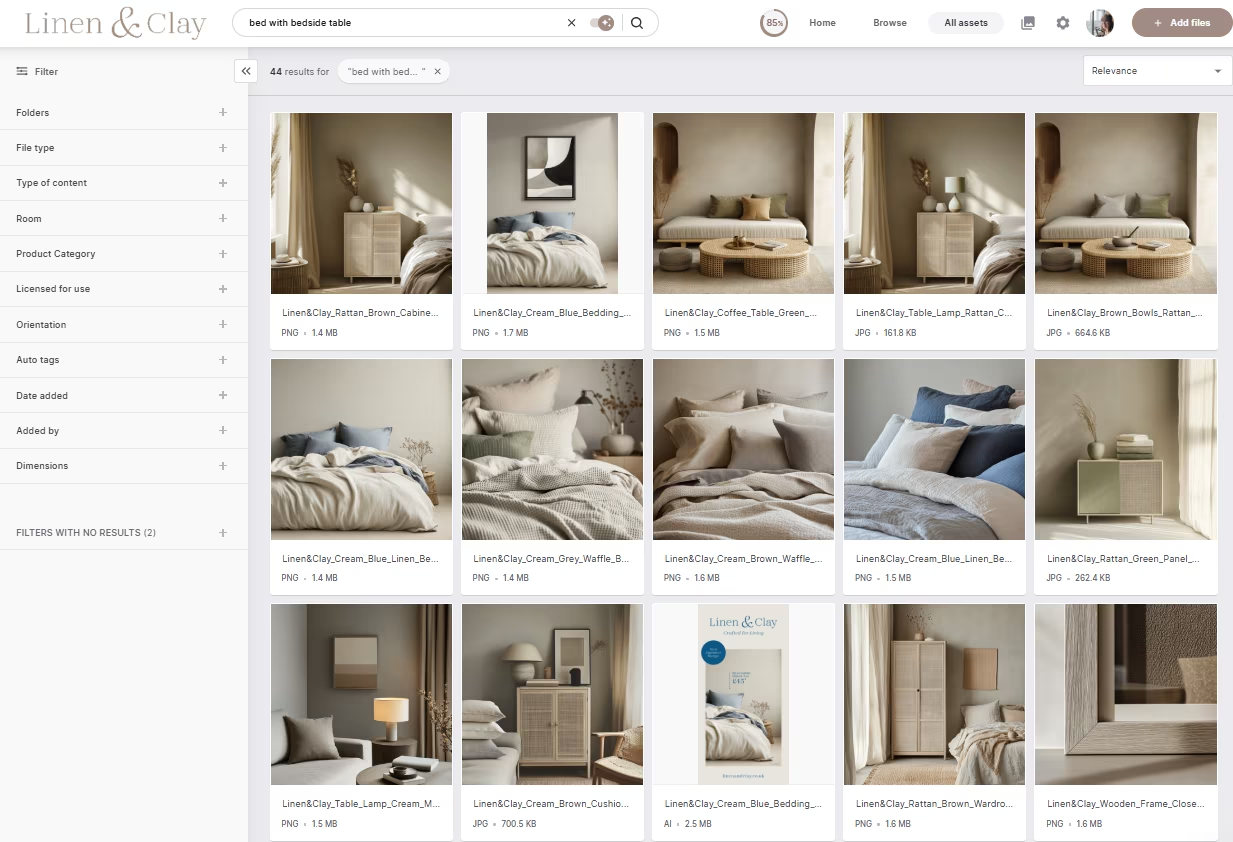
So, we made it super easy to search for content in our DAM. Yes, you can search using keywords, tags, and filters. But you can also just describe the images you’re looking for, and our DAM will return all the assets that match your description.
Our customer, Lily from iconic beer brand Beavertown, shares how easy it is to find assets in Dash.
“The searchability in Dash is really great. For example, if I'm looking for something from a couple of years ago, I can actually find it because I can type in a keyword. I can also filter it by the year and I can choose the product. It’s really good because people were struggling to look for things before, but now they can look for themselves.”
[fs-toc-omit] 3. Share with retailers
A portal is a public-facing version of your Dash. You can use it to share content with partners, resellers, and anyone you collaborate with regularly.
Let's say you're launching a new product line and need to share approved shots with your resellers. Instead of uploading the images to OneDrive and struggling to share them there, you simply add the images to your portal and share that instead.
Your resellers will be able to access the assets they need in one central place. They’ll be able to use natural language search and filters to find the content they need. And they’ll be able to resize images for their different channels before download. It means they don’t need to hassle you to crop and resize their assets. 😇
Here’s what one of our customers, Mountain Equipment, says about sharing assets using Dash portals.
“Sharing campaign assets with our retail partners has never been easier. We can cherry-pick the right images and products for them, ensuring they have access to everything they need in their own custom portal. It’s just brilliant. It shows them we care about more than just selling jackets — it shows we care about the level of service that comes afterwards.”
[fs-toc-omit] 4. Collect UGC
Guest uploads in Dash make it super easy to receive content submissions from freelancers and customers.
Let's say you're running an ecommerce campaign and need to collect user-generated content from your customers. To do this in OneDrive, you’d need to create a Microsoft Form with a file-upload field, then collect submissions as attachments. And that comes with its own problems:
- You can only accept up to 10 files per upload question
- Maximum file size tops out at 1 GB
- Everything gets dumped into a single folder, with no tagging or structure
- You’ll still have to manually sort, rename, and organise assets afterwards.
If that sounds like way too much work 😫, it's because it is.
With Dash, all you need to do is create a guest upload link and share it with your customers. They'll be able to submit UGC directly (no file limits), and you can review and approve at once. All approved content is automatically saved in Dash, in a folder of your choosing, ready for use.
Here's RevAir’s experience collecting UGC in Dash via guest uploads.
“Some of our customers generate outstanding videos and reviews for us. Before Dash, one person might send it via Dropbox, another via Google, and another in a text. Having one guest upload link that notifies us when content is sent feels more professional, and I feel like we don’t lose anything.”
[fs-toc-omit] 5. Crop and resize images
Ecommerce teams rarely use one version of an image. Retailers, marketplaces, social ads, product pages — they all have different size requirements. That means a lot of repetitive resizing.
Dash simplifies this with preset image sizes. You can create image presets so your team can instantly download and use assets in the correct dimensions. It’s a huge time-saver, especially when multiple people manage different channels.
Our customer, Passenger, shared how image presets help them deploy content faster.
“What I love about Dash is that I can crop and download everything in one place. I don’t have to grab files from somewhere else and then open Photoshop to make adjustments — it’s all done in Dash, which is a huge time-saver.”
[fs-toc-omit] 6. Quickly update content in Shopify and WooCommerce
OneDrive doesn’t offer any native integrations with Shopify or WooCommerce.
Sure, you can connect OneDrive to Shopify or WooCommerce using third-party tools like Zapier, Make, or Skyvia. But those connectors only move files or data between apps. They don’t solve the real ecommerce workflow problems like deploying content in the right dimensions, etc.
Dash, on the other hand, syncs with Shopify and WooCommerce. It connects directly to your store, so you can drop images straight from your DAM into your listing and get products live in a fraction of the time.
For example, our customer, COAT, uses Dash’s Shopify integration to set up custom product sizes which they can drag and drop into their product pages.
OneDrive vs Dash: user interface
OneDrive’s interface just isn’t built for visual-heavy work. The thumbnails are tiny on a desktop, so when you’re scrolling through hundreds of product photos, everything starts to look the same. You might spend more time squinting at small previews than actually finding the asset you need.
Beyond that, the UI can feel cluttered. There are menus, submenus, and options tucked in places you wouldn’t expect — making simple tasks (downloading, sharing, renaming, moving files) take more clicks than they should. It’s not intuitive, especially for teams that just want to find and use the right image quickly.
“What I dislike about Microsoft OneDrive for Business is that the user interface can be unintuitive at times, especially for new users. Folder permissions and sharing settings can be confusing, leading to accidental access issues or oversharing” — G2 review.
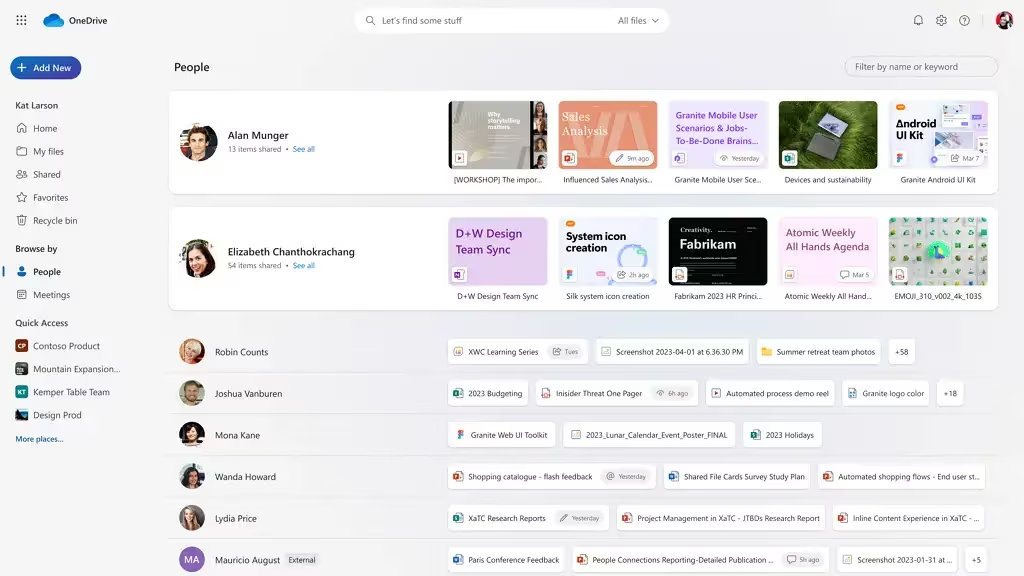
Meanwhile, Dash’s user interface is designed to do your visual content justice. Everything in Dash is built around visual workflows: clean layouts, simple filters, easy bulk actions, and a content library view that puts the image front and centre.
You get large, high-quality image previews that actually show off the details: colours, textures, angles, and overall aesthetics. When you’re browsing through hundreds of product shots, you can instantly spot the one you need without clicking into every file.
Plus, you can customise your Dash’s appearance and setup per your brand’s preferences. For example, here’s what RevAir’s Dash looks like.
And for what they think about Dash’s user interface, Kim, RevAir’s CCO, had this to say.
“We spend so much money on visual content. It shouldn’t be in folders. It should be easily accessible and displayed like a beautiful photo album. I encourage anyone, especially anyone working with agencies, to look at Dash and think about how they could do things differently.”
OneDrive vs Dash: pricing
You can purchase OneDrive as a standalone plan or as part of the Microsoft 365 suite. On its own, pricing starts at around $5 per user per month. If you want access to other Microsoft tools like Excel, Outlook, and Teams, the cost goes up to about $12.50 per user per month.
It's important to note that many cloud storage services advertise free storage or 2 TB business plans, but storage space alone doesn’t solve visual content workflows.
Dash, on the other hand, costs $109 or £79 per month. Now, I know what you're thinking: that sounds pricier than OneDrive 🤔. Not quite — the ROI you get from Dash is so much higher.
First, Dash’s pricing includes every feature for every user. Unlike OneDrive, you're not paying for extra seats when you onboard new users (like freelancers or retail partners) to your DAM.
Then, there are the direct time and money benefits you get from using Dash. Take our customer, RevAir, for example. They saved 20 hours per month on visual content management, just by switching from Google Drive to Dash.
Kim, the brand’s CCO, told us, “For what Dash costs per month, I easily get ten times the return in productivity from my team members. In addition to happier team members and better quality work.”
When you start looking at it this way, Dash doesn’t cost more. Instead, it's an investment that pays off in time, efficiency, and money (what we all like to hear).
What’s the best OneDrive alternative for your ecommerce store?
Easy — it’s Dash. We’re not saying that just because it’s ours (okay, maybe a little). But we did build it to fix all the stuff OneDrive gets wrong, like clunky sharing, basic search, and missing ecommerce integrations.
So, when you choose Dash, you’re not getting a catch-all tool trying to be everything at once. You’re getting a DAM made for how your ecommerce team actually works. With Dash, you can:
- Instantly connect your image library to Shopify and WooCommerce
- Automatically tag, resize, and organise your visual assets.
- Search visually instead of memorising file names.
- Share content with partners through branded portals
- Track which assets perform best with built-in analytics
And so much more! Ready to see how much easier life can be with a DAM built for ecommerce? Try Dash for free for 14 days.
OneDrive alternatives FAQs
[fs-toc-omit] How secure is OneDrive compared to other cloud storage services?
If you’re storing sensitive business data — product launches, supplier contracts, campaign assets, unreleased visuals — security isn’t optional.
Most cloud storage services, including OneDrive, offer solid baseline security features. Your files are encrypted in transit and at rest on Microsoft’s cloud servers, and you can control who has access to folders and documents.
But for teams that rely heavily on secure file sharing, especially with external partners, things can get more complicated.
Where OneDrive works well
OneDrive offers:
- File versioning, so you can restore previous versions
- Permission controls for multiple users
- Password protected links
- Expiry dates on shared links
- Enterprise-grade infrastructure and data protection standards
For many business users, this level of secure storage is enough. However, OneDrive is designed as a general cloud storage provider — not a specialist secure content distribution platform.
[fs-toc-omit] Are there free cloud storage alternatives to OneDrive?
Yes, several providers offer free cloud storage plans.
Google Drive, Dropbox, and Proton Drive all include a free plan with limited storage space. These plans are usually suitable for individual users or light personal use, but they often come with file size limits, restricted premium features, and limited collaboration tools.
For business users managing large files or multiple users, free storage is rarely enough long term. Most teams eventually need more storage space, stronger security features, and advanced sharing controls, which are typically included in paid business plans.
[fs-toc-omit] What’s the difference between cloud storage and digital asset management?
Cloud storage is designed to store and share files online. It acts as a central place to store documents, images, and other data across devices.
Digital asset management (DAM), on the other hand, is built specifically to organise, search, control, and distribute visual content at scale.
While cloud storage services focus on storage space and file syncing, a DAM includes features like:
- Advanced tagging and metadata
- Visual and AI-powered search
- Asset performance tracking
- Controlled access for multiple users
- Structured sharing portals
- Version control for creative assets
In short, cloud storage helps you store files. A DAM helps you manage and use them strategically.

Faith Uzuegbu is a content marketer and freelance writer for B2B SaaS and tech companies like ClassPass, PlayPlay, and Thinkific.