
If you're still not using your user-generated content (UGC) to its fullest potential, this might sting: shoppers who engage with UGC convert 144% more often, and spend 162% more per visit. The math is stupid good.
But if you’re having trouble managing and keeping track of all your user-generated content, you’ll never be able to use it to its full potential. When you can’t find your content, your campaigns launch late. This can result in your ads underperforming, a breakdown in relationship with your creators, and you keep spending money on recreating content you already own but can't access.
This is how perfectly good UGC ends up doing absolutely nothing for your brand.
But fear not, I’ve got some simple advice: organise your workflows and your social proof will start to do its job.
Why your best UGC gets wasted
Most marketers know how important UGC is. It’s real social proof from happy customers who are keen to spread the word about your products. You can use it on your product pages to help convert, share on your socials to raise brand awareness and implement into your marketing messaging to help reach new shoppers.
But without proper systems in place, it’s easy for you to miss this valuable social proof.
Let me give you an example: For two years, I ran a very profitable thrift store on Instagram. Reviews from happy clients would come in through my DMs—get screenshotted, saved ‘for later,’ and then poof… vanish into my phone.
I knew I had great stuff, but the issue was always surfacing the right content at the right time.
That same pattern shows up in bigger brands—tons of great UGC, but no clean way to find it and use it.
So why is your UGC getting wasted? Well, think about how you’re currently storing your brand’s content. You've likely got Google Drive (because it came with your email), Dropbox (because it seems like an upgrade from Drive), and WeTransfer (because you needed to send one big file that time).
They do file storage, they do transfers, they do the basics—but they don’t solve the problems that make user generated content usable at scale:
- There’s no consistent structure: Folders multiply, naming conventions break, and there’s no central taxonomy.
- There’s no version control: There’s no reliable way to know which version is approved or current.
- There’s no metadata or tagging: You can’t filter by product, creator, campaign, or usage rights.
So you’re paying for two or three platforms to do one job. And the one job—getting UGC to your product pages—isn't even getting done. 🤷
Terry Stephenson, Head of Marketing at Mountain Equipment, who ditched Dropbox and WeTransfer for Dash (👋), had the same problem:
“We have all this amazing content. But the barrier has always been that those assets would sit on someone’s computer for weeks or even months—and never see the light of day.”
The fix is digital asset management (DAM) software: one tool to rule them all.
What does successful UGC management look like?
A quick refresher—UGC comes in three broad formats:
- Written content: Reviews, comments, testimonials, captions.
- Visual content: Photos, screenshots, graphics.
- Audio and video: Unboxings, tutorials, voice notes, explainers.
And speaking from experience, they don’t live in the same place.
So when you need to pull together a campaign, you're searching Slack, email, DMs, Notion, creator portals, YouTube comments, and that folder someone created called ‘CONTENT_FINAL_ACTUAL_v2’—which is neither final nor actual.
So what does good UGC management look like?
Take Forthglade, an award-winning, natural dog food brand.
They run a monthly UGC campaign called ‘Dog of the Month,’ where customers submit photos of their dogs for a chance to win a very generous doggy bag and a spot in Forthglade’s Hall of Fame across their digital channels.
People love it, submissions roll in, and the inbox fills up with excellent dogs. 🐶
The important part is what happens next. 👇
David, their Graphic Design Manager, wanted one place where people could go, find an image, and know it was ready to roll.
So he built a tagging system using custom fields. Customers send in photos through their website, Zapier automatically funnels them into Dash, and boom—they land organized and ready for review. Every month, the team scrolls through the submissions, marks up the winners, and picks the reigning pooch.
Something else clicked, too: the business started talking to each other about content.
“The ecommerce team, for instance, can see assets that have been uploaded by the sales team in case they want to use them in their campaigns. Seeing what others are creating sparks ideas.”
Now let’s talk about you.
7 practical ways to manage your UGC
Full transparency: I'm using Dash to walk you through this. Not because I have to, but because it's the tool I wish I'd had when I was running my thrift store.
I'm going to show you what's actually possible when your UGC has one digital home. 🏠
Let me mock up my now-defunct store and walk you through everything.
1. Pick one place where all your UGC goes
The first thing the best UGC-led brands get right is centralising all content in one searchable home, so everything lands in a single place where you can find it easily.
This is what that looks like in Dash.
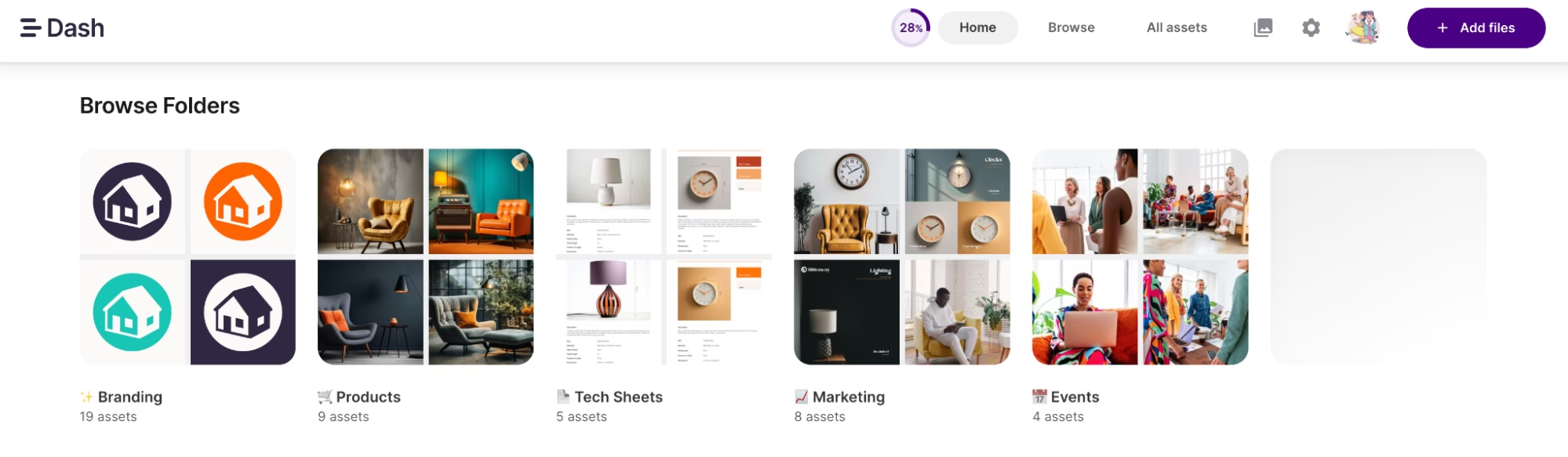
Dash doesn’t care where your UGC comes from: images, videos, audio files; all of it lives side by side in one library instead of being split across tools and formats.
📚Recommend reading: 8 ways to use user-generated content in your campaigns
2. Have a simple way for people to upload content
You've got a central library. Great! Now, how does content get there?
If UGC is hard to submit, people just won’t do it. Or worse, they’ll send it in whatever way’s easiest for them: DMs, email attachments, WeTransfer links you forget to download.
In Dash, I can remove that choice entirely—I can give people one simple way to upload content and make everything else off-limits.
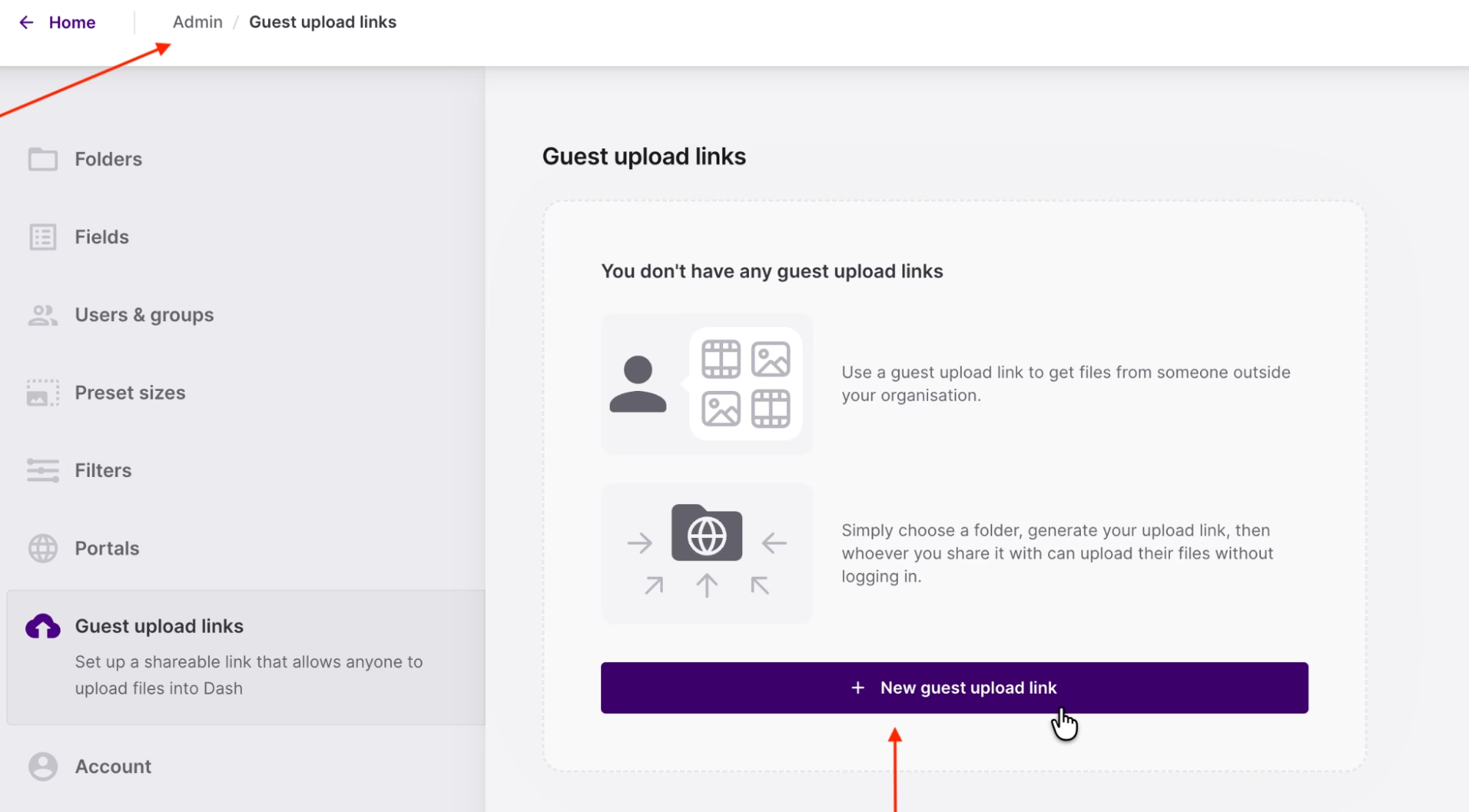
That’s done with guest upload links: unique public URLs you generate from your Dash admin. Your contributors can access the link without logging in, upload images and videos, and those files land directly in your Dash library, ready for review.
To create a guest upload link, go to Admin > Guest upload links, and click New guest upload link.
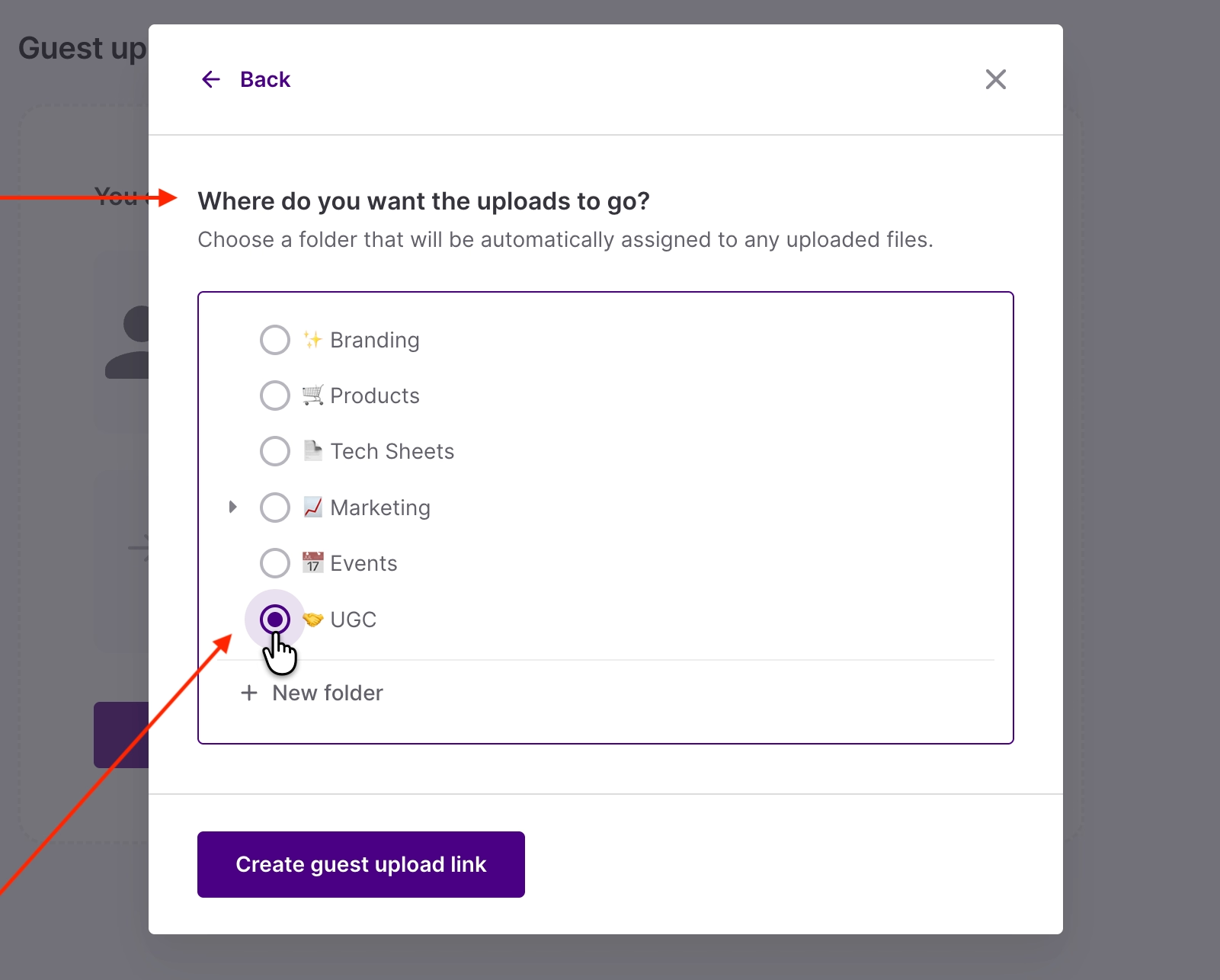
When you build a guest upload link in Dash, one of the first things you do is pick the folder where submissions should live. You don’t have to move things later; assets land where they’re supposed to be as soon as you approve them.
Next, if I’m asking someone to send me content, especially a customer, I don’t want it to feel like they’re submitting paperwork.
Dash lets you name the link something that makes sense to your business, something like ‘Good things about @thriftbybrinda 🔥’

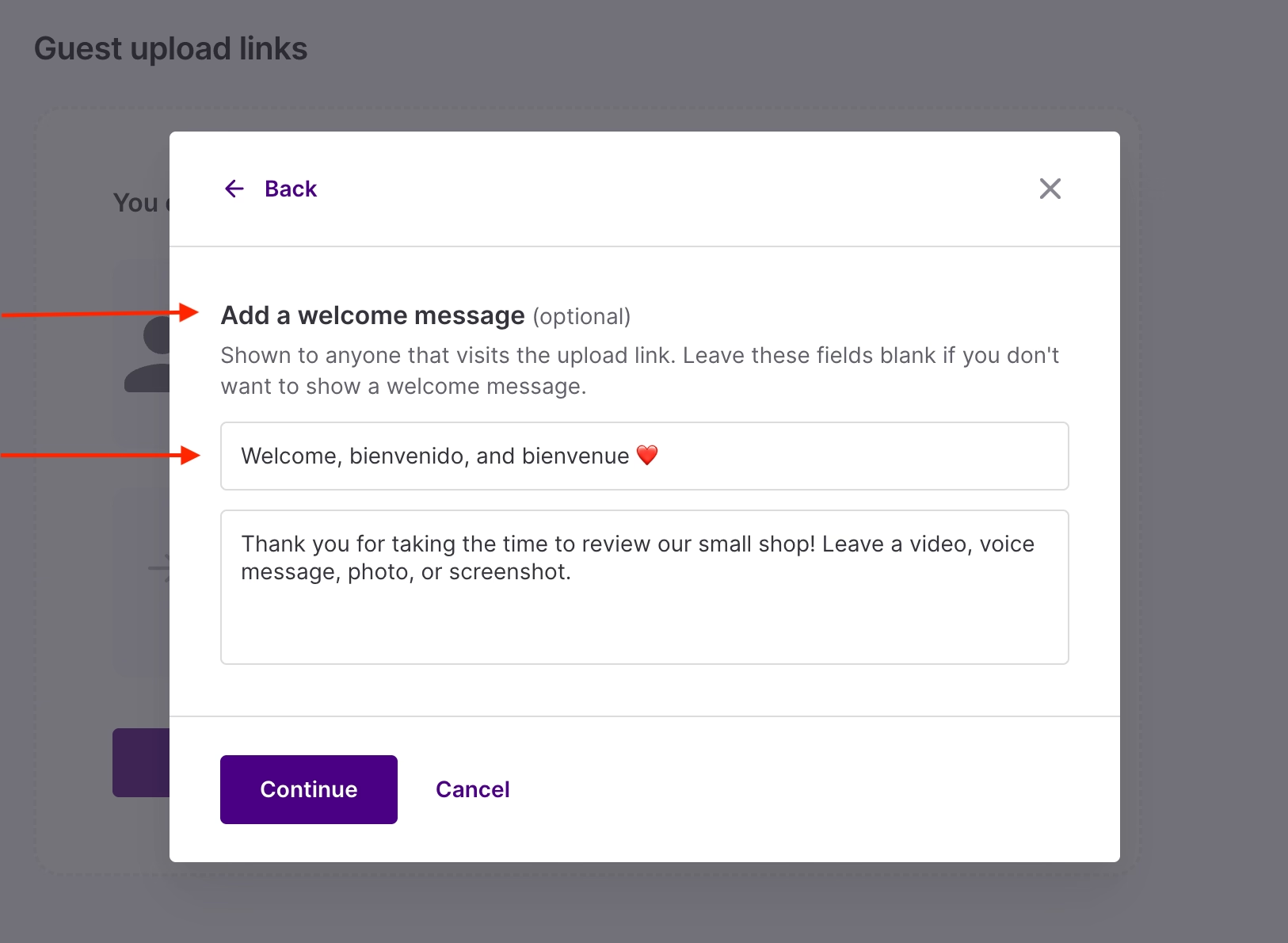
Then you add a welcome message; something warm that explains what you're looking for and why.
This shows up as soon as someone opens the link, and for ecommerce brands, this is where a little personalisation goes a long way. You can thank them for their time, tell them exactly what kind of content you’re looking for, and make it clear they can upload photos, videos, screenshots, or voice notes, like so:
And here’s what submitting looks like on the other side:
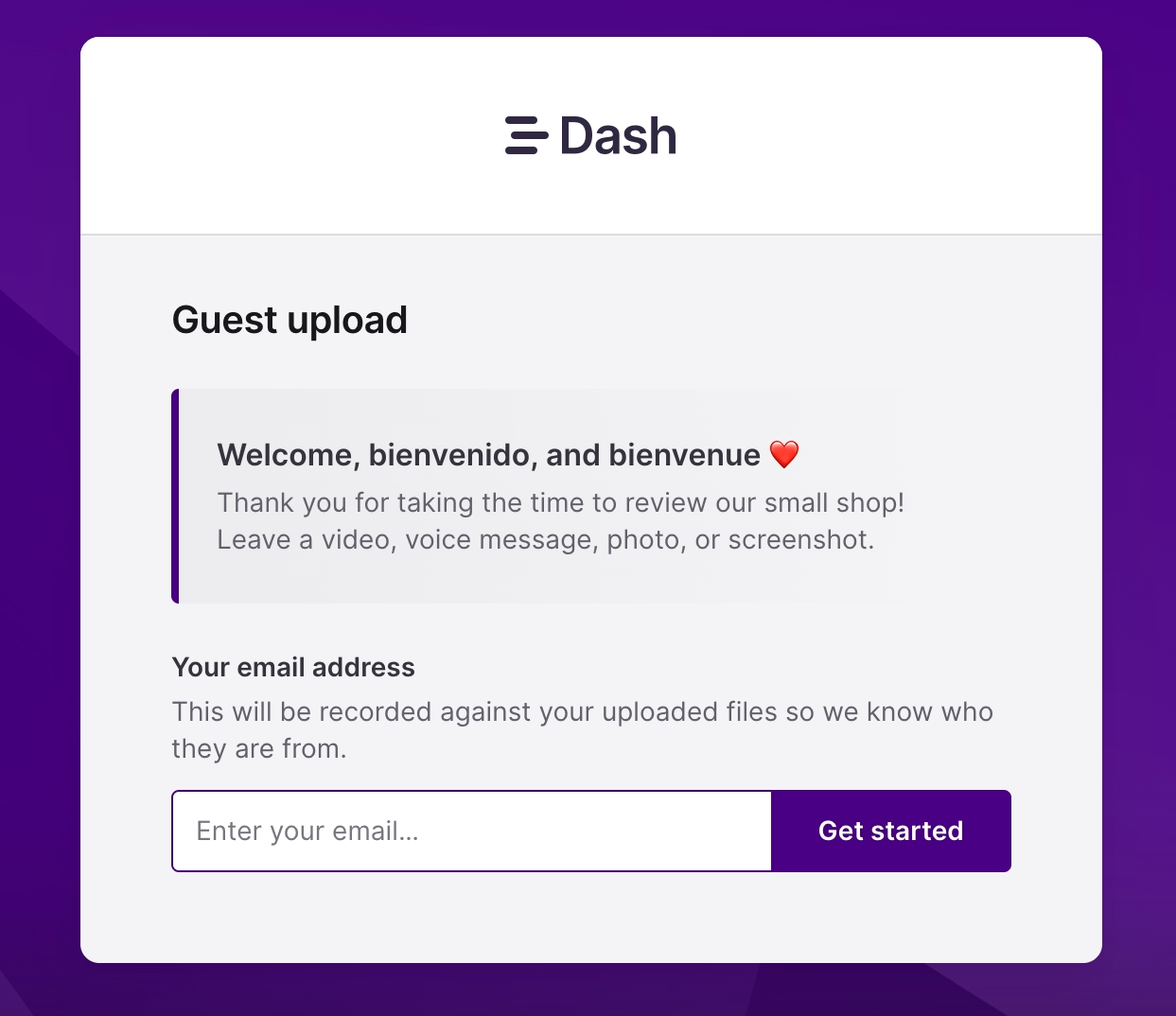
- They open the link in a browser.
- They add their email address (so you know who sent what).
- They drag and drop their files—or click Choose files.
- They hit Submit.
That’s it.
On your end, those assets land in your approval workspace in Dash where you can accept or reject assets as you see fit. .
When uploading is this easy, more content comes in. And when everything lands in the right place, more of that content actually gets used…which is the whole point. 😎
✨Get inspired: The best UGC examples from fashion brands
3. Set up approval workflows and feedback loops
For more creators you work with regularly - like photographers - you can set approval workflows. These people probably won’t need full access to your Dash, so you can set them up as contributors who’ll be able to upload content and receive feedback. For example, you might want them to retouch a photo before you push it live in Dash. They’ll be able to submit a new version once it's ready.. Once approved, those assets become visible and available to the wider team.
What’s more, you decide what happens to their uploads. Some people can upload and go live immediately, while others must be approved by you first.
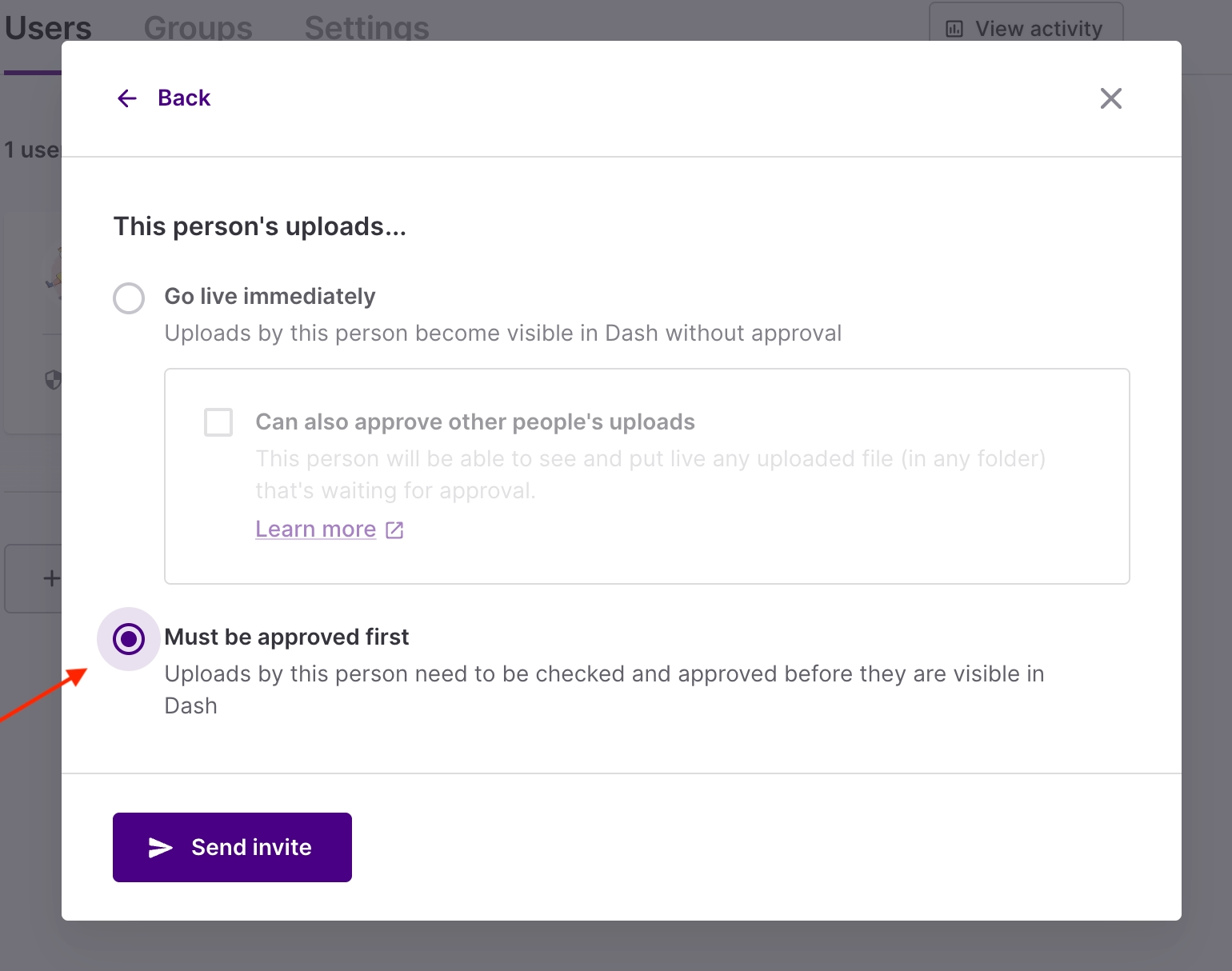
For external contributors, I’d recommend always requiring approval; they can upload directly into Dash, but nothing becomes visible to the rest of the team until it’s checked. For trusted internal users, you can loosen the rules and let content flow faster.
👉This workflow is one of the (many) reasons why teams like Ethnothek are Dash converts.
Ethnotek sells handcrafted products made by artisans around the world. Their visuals tell the story: the craftsmanship, the culture, the people behind each piece. That content is very important, especially as more retail partners need access to it.
But that’s also where things started to creak.
As demand grew, the team found themselves juggling files across Google Drive and Dropbox: sharing assets with partners took time, working with photographers meant downloading massive WeTransfer files, renaming assets, and manually filing everything away.
The content existed, yes, but keeping it organised and usable was slowing down the team.
Ethnotek now uses Dash as a single source of truth for their content.
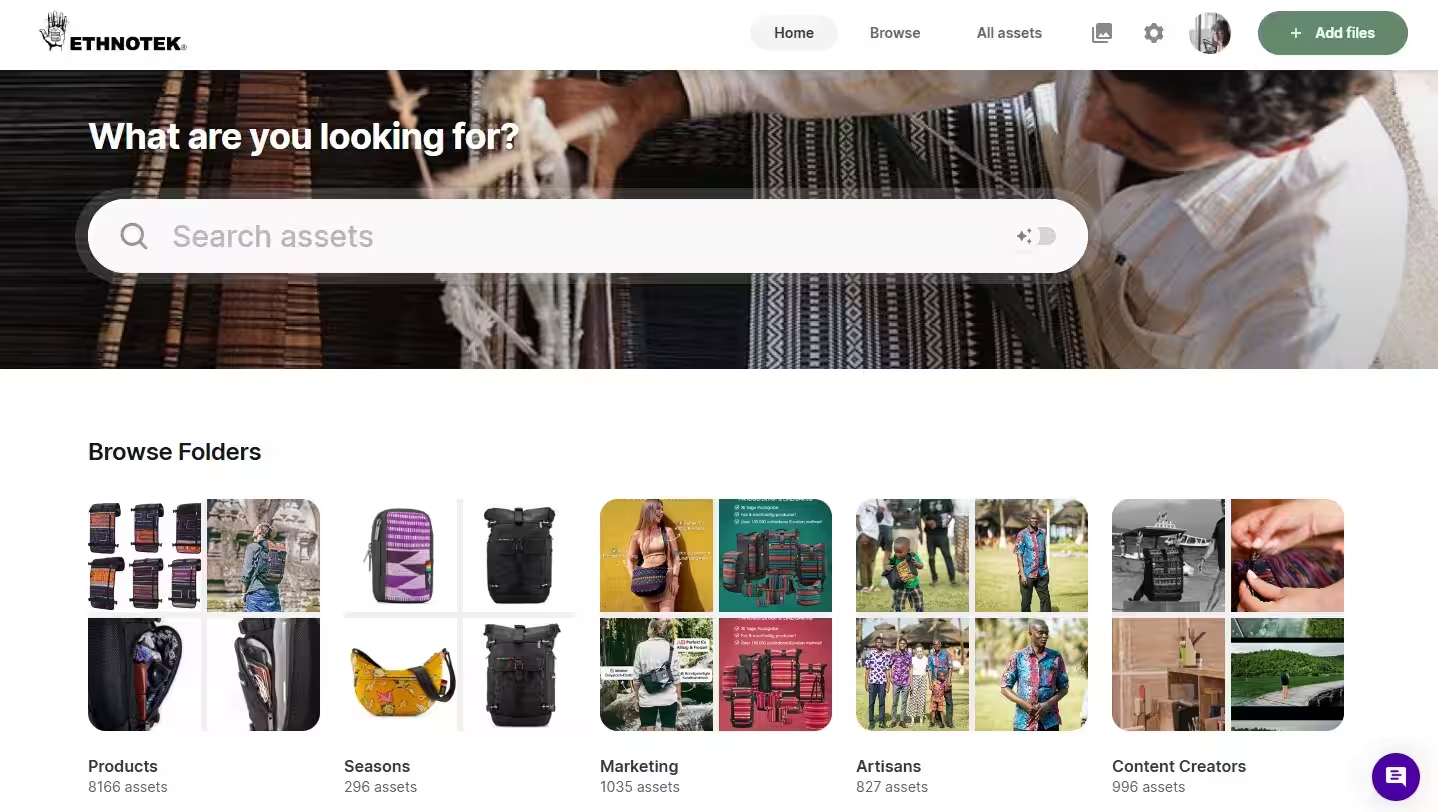
Dash simplified how Ethnotek works with photographers and creators. Instead of WeTransfer links and manual uploads, creators now upload directly into Dash.
“Once the photoshoot is done, [the photographer] has access to the platform. He can upload the studio photos there. And then for us, it’s only a matter of approving the photos or just giving feedback. And then the final versions will then be stored in Dash,” says Niels Janszen,
Ethnotek’s Ecommerce Director.
4. Tag your UGC searchable information
Folders are great for broad organisation, but if you want UGC to be findable, especially when you’ve got hundreds or thousands of assets, you need solid metadata.
(Metadata is the information that gives an image or video context: who created it, what it’s for, when it was shot, and what’s in the frame.)
So don’t let your UGC rot with filenames like: IMG_2847.jpg, ProductPhoto_v3_FINAL, Screenshot from 2024-01-15 at 3.47.22 PM.
At the time of upload, you’re in a rush, you’ll remember later, future you can deal with it.
But three months pass, and you’re now scrolling through 400 near-identical files, trying to remember which one was approved, which one performed, and which one you absolutely should not use again. You vaguely recall a Slack thread, or an email, or a feeling…? 🫠
No more, I say!
Dash makes this easy with custom fields, controlled tags, and AI-enhanced search so you can filter and find content the way your team thinks about it.
[fs-toc-omit] Custom fields
In Dash, you can choose different field types depending on how structured—or flexible—you need the data to be.
- Free text fields are best for context that changes from asset to asset: Think descriptions, notes from a shoot, or odd keywords that don’t fit neatly anywhere else.
- Dropdowns, checklists, and controlled tags are where structure really kicks in: These fields let you define a fixed set of values your team can choose from, so everyone’s speaking the same language.
If I’m setting this up for my thrift store, it’ll look something like this:
- Product category (dropdown): Vintage jewellery, home accessories, decor, bags.
- Media type (checklist): Flatlay, styled, packshot, UGC.
- Season or moment (dropdown): Christmas, Valentine’s Day, Halloween.
- Usage rights (dropdown): Owned, organic only, paid approved, expires.
RJ Living, another happy Dash client, uses folders to organise images by season and photoshoot, so the structure stays familiar. Every folder, then, is made searchable by layering in additional fields that let the team filter assets quickly and precisely.
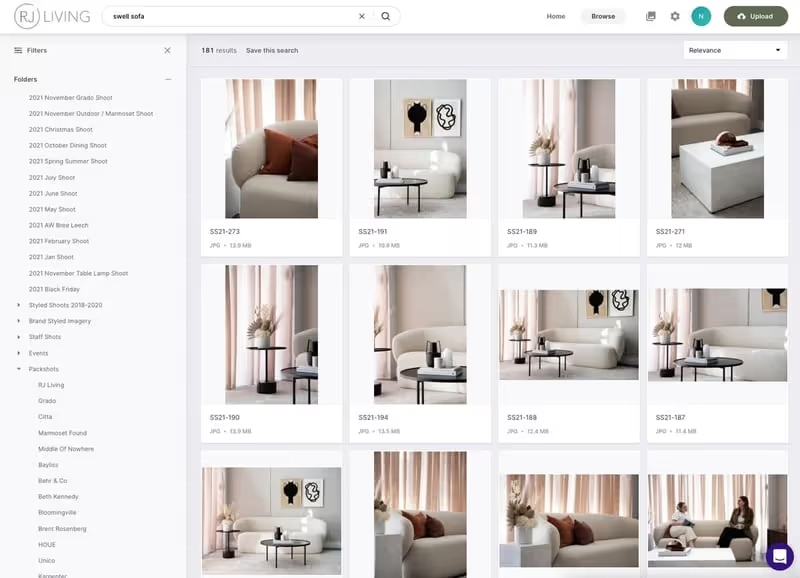
Nathan, RJ Living’s Chief Operating Officer, explains how they think about it:
“We tag by product type, distinguish between styled images and pack shots, and usage rights. That last one is especially important for images that come from a photographer or an influencer. We also use things like setting a deadline on Christmas-themed logos, for example—nobody wants to see those in January!”
[fs-toc-omit] Controlled tags
If custom fields decide what information you capture, controlled tags decide how consistent that information stays.
Left unchecked, tagging turns into a free-for-all: one person tags something ‘vintage jewellery,’ another uses ‘vintage jewelry,’ someone else goes with ‘old gold stuff.’
In Dash, controlled tags let you define a fixed list of terms your team can choose from.
Head to Admin > Fields, click New Field, and choose Controlled tags. From there, you define the vocabulary your team will use.
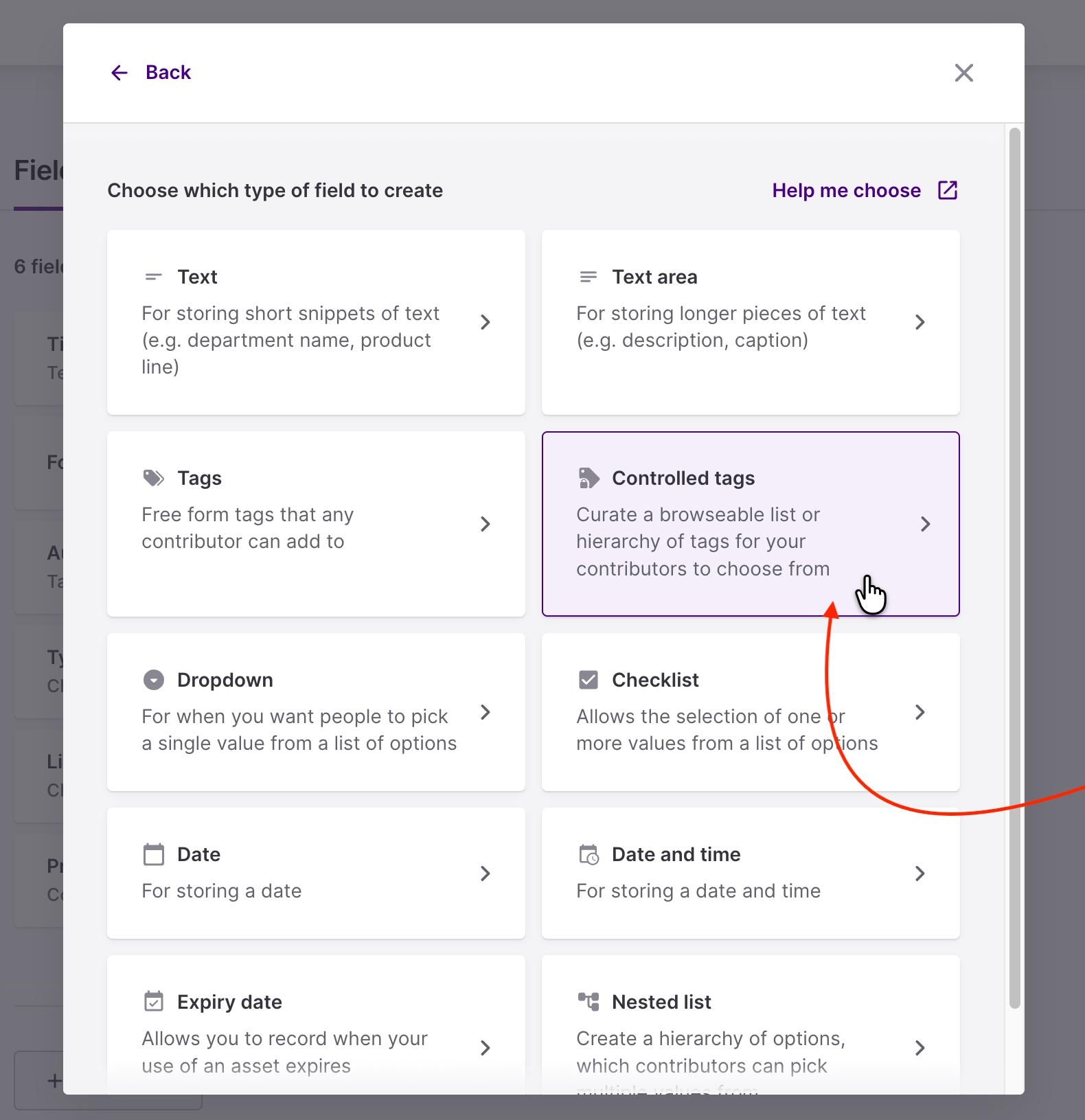
For my thrift store rebuild in Dash, this is where I lock things down:
- Style or theme: Heirloom, vintage, minimalist.
- Category detail: Pearl earrings, gold-tone necklace, home accessories.
- UGC use case: Product page, homepage, paid social, email.
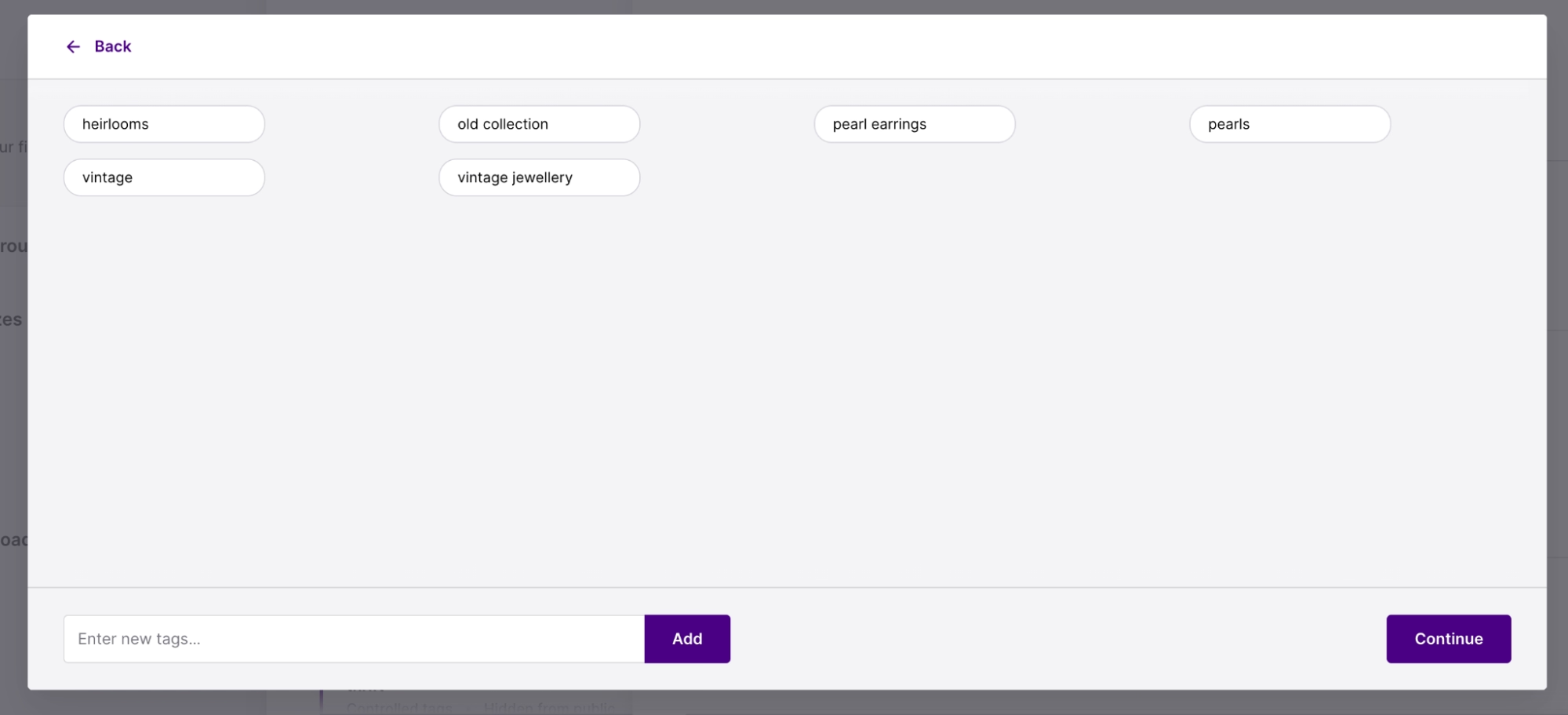
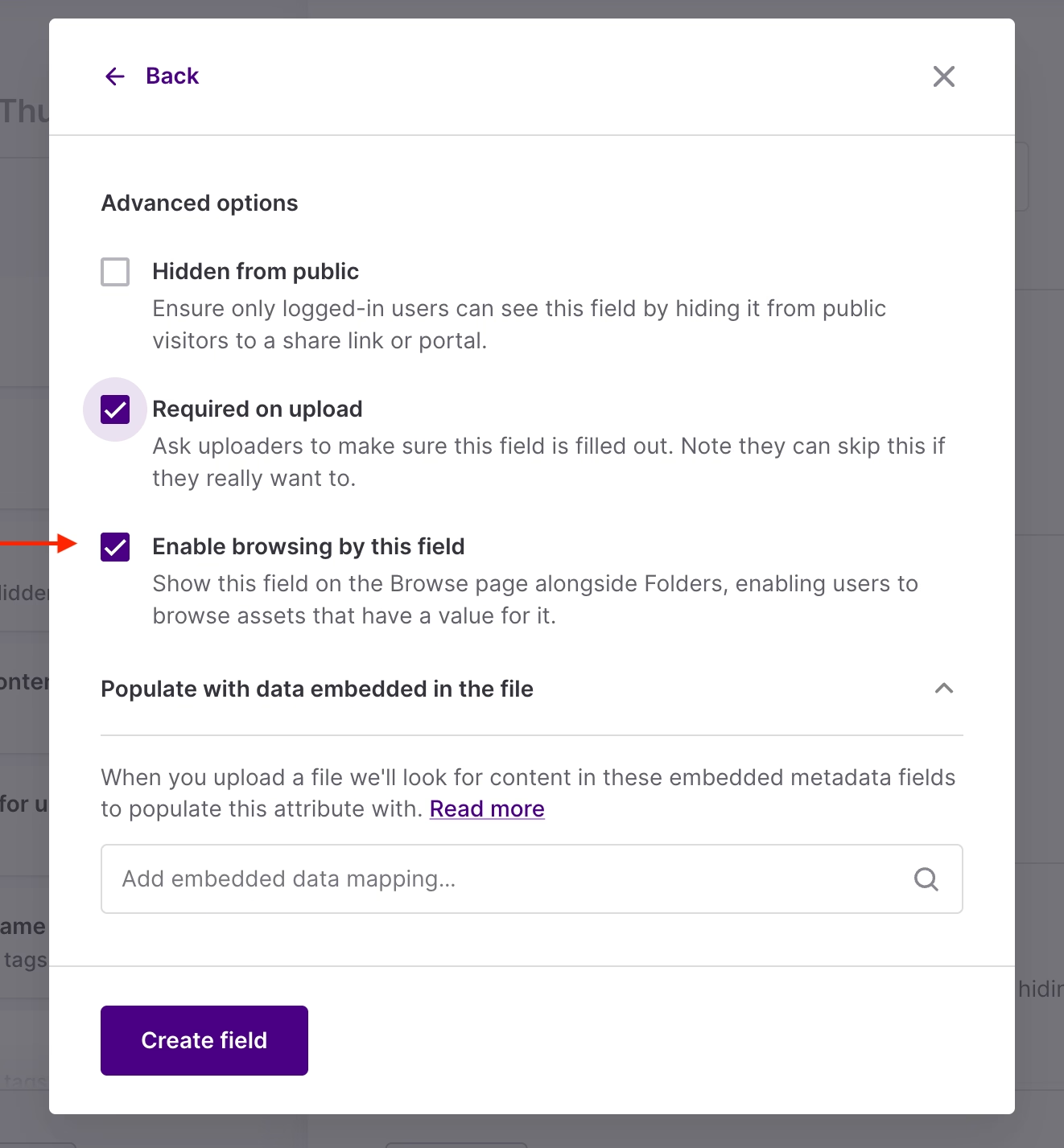
Once those tags exist, contributors select instead of free-typing, and from there, you can:
- Require the field on upload, nudging people to tag assets properly from day one.
- Hide fields from public portals, so internal-only metadata (like usage notes) doesn’t leak to partners.
- Enable browsing by that field, so tags show up alongside folders as a first-class way to explore content.
[fs-toc-omit] Auto tags
Sometimes you inherit a muddied library, and sometimes you remember the vague feel of an image, but not the SKU or who shot it.
In Dash, AI automatically analyses images as they’re uploaded and applies tags based on what’s in the frame: objects, scenes, colours, and visual context.
I’d say it’s very accurate, look for yourself:
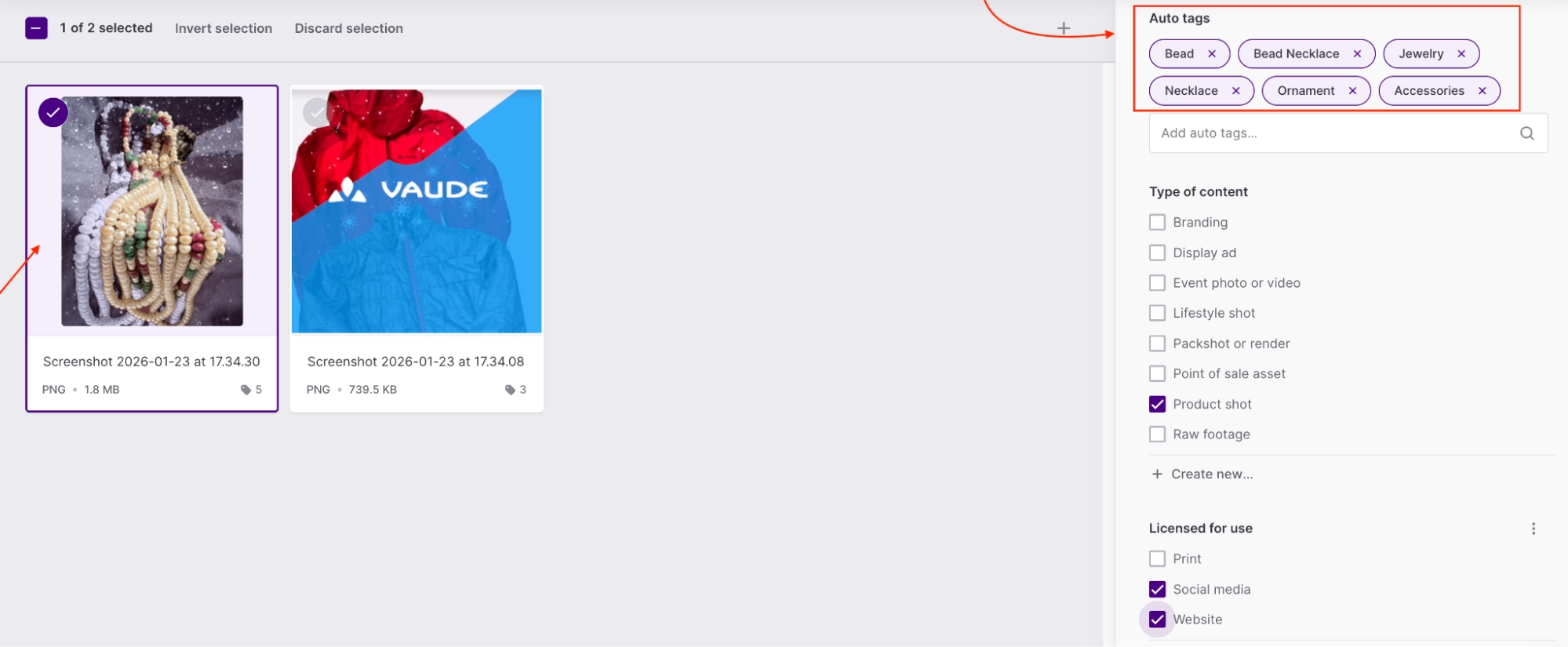
☝️A note: Auto-tags don’t replace custom fields or controlled tags. When structured metadata is missing, or when you’re moving too fast to be meticulous, auto-tags make sure content is still discoverable. This is especially useful for UGC, where submissions don’t arrive neatly labelled.
5. Use integrations like Shopify and Hootsuite to deploy your UGC
Okay, so you've got UGC organised, tagged, and findable—now it's time to use it. 👏
Dash connects directly with tools across your stack, so you don’t have to download files or upload them somewhere else. That includes platforms like Shopify for your ecommerce store and Hootsuite for social publishing.
Shopify first, because this is huge.
Shopify is where your product lives and converts, so the closer UGC gets to your PDPs (product detail pages), the better.
We're rolling out an updated Shopify integration soon, and it's going to be GOOD. But right now, with Dash’s Shopify integration, you can:
- Bring approved visuals straight into your Shopify product listings without re-downloading or hunting through folders.
- Crop and resize assets to match Shopify’s image requirements.
When fresh, relevant UGC shows up on the product page, shoppers see real people using real products. And this is especially critical because recent academic research has found that UGC has the potential to significantly enhance brand trust and purchase intention.
Plus, that same content works everywhere: Dash integrates with Hootsuite, so you're pulling approved UGC directly into your social scheduling without breaking workflow.
New content hits Dash, it's immediately available to schedule and ship across Instagram, TikTok, Pinterest, wherever your audience lives.
6. Get UGC ready for any channel
While we’re on the subject of getting content out instead of just organised:
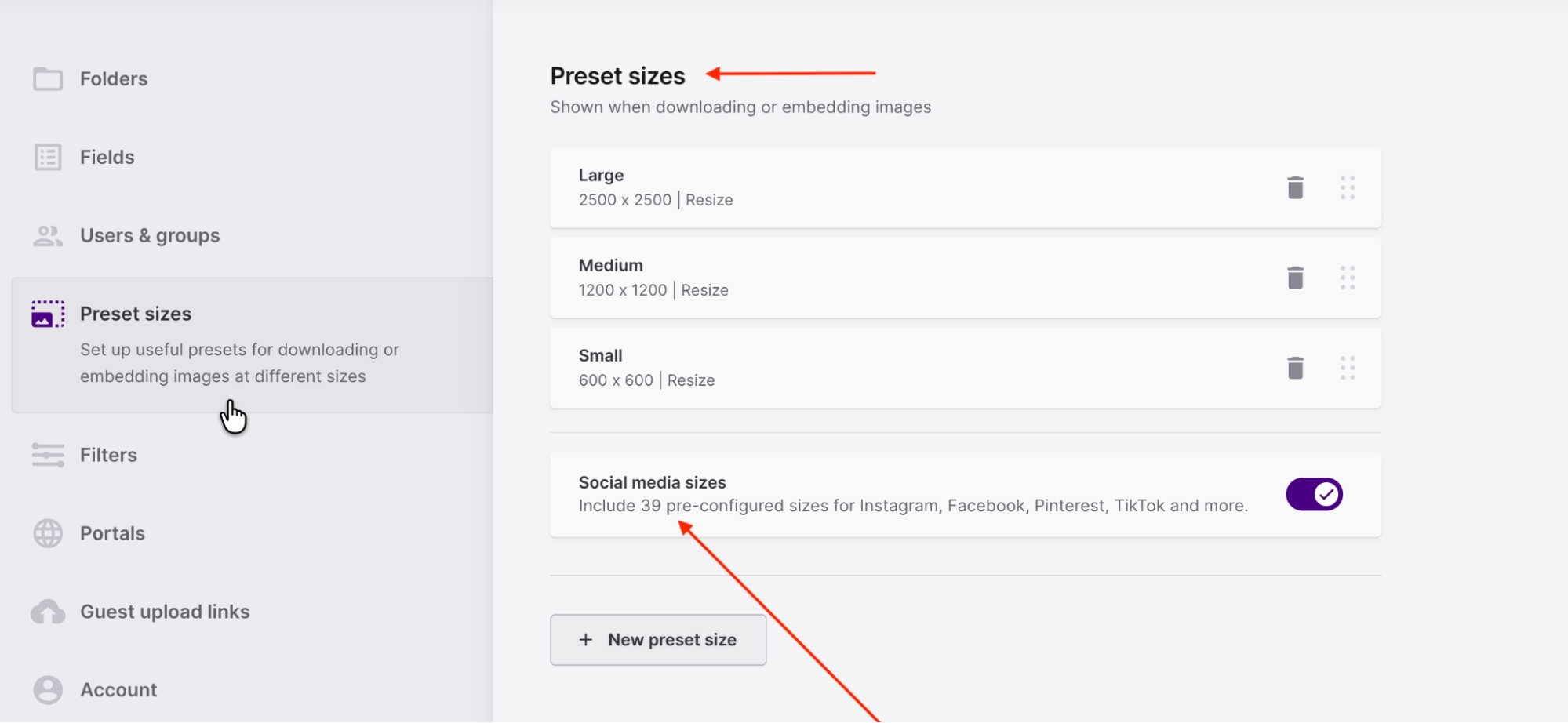
Dash doesn’t make you jump into design software every time you need a different image size. We give you built-in crop and resize tools so you can get UGC channel-ready without extra steps. You select an image, choose a preset or enter custom dimensions, adjust the crop if needed, and Dash generates a new version at the correct size.
For example, you can crop content for Instagram, TikTok or your email marketing platforms.
You can also save preset dimensions for the channels you use most. So instead of guessing sizes, your team picks from a dropdown: Instagram post, homepage banner, retailer thumbnail, and moves on.
You have 39 pre-configured social sizes baked in, so you’re not memorising pixel specs.
And remember the very good dogs from Forthglade? 🐶
This is where things sped up for them behind the scenes, too. Here’s David Keefe, Forthglade’s Graphic Designer, in his own words:
“We get fewer requests now for branded graphics and logos because they’re all on Dash. People in other teams can do basic editing in Dash, like resizing graphics, so they don’t have to come through us.”
7. Let partners self-serve your UGC
Your wholesale partners are trying to sell your products, your agencies are building campaigns, and your influencers need assets for their own content.
Dash gives you a few different ways to share content, depending on how permanent or polished the situation is.
[fs-toc-omit] Portals: For retailers who need ongoing access
A retailer portal is a branded, self-serve space where your partners access exactly what they need, without logging in, links expiring, or files getting blocked by firewalls. You decide what they see, you decide what they can download—they get one link and instant access.
You can brand Dash portals with your retailers’ visuals and messaging, locked behind a password if needed. You can also create as many portals as you need (at no extra cost). This is especially useful if you work with multiple retailers around the world, all needing different requirements. So if your American retailers need different assets and information to your Australian retailers, you can keep everything separate.
Just ask BrewDog—a leader in the UK beer industry, who have 102 bars around the world, over 2,000 crew members, and retail partners across multiple markets. Each region needs different assets, because the information printed on a beer can in Australia is totally different from the UK.
So BrewDog uses Dash portals to split assets by region. For their German portal, for example, they allow access to the German, UK and Master Brand Assets folder, like this:
.avif)
Jack Boffy, BrewDog's Campaign Activator, says:
“Portals has been one of the big game changers. One of my biggest concerns before we moved to Dash was ensuring we didn’t have all countries in one folder. As soon as we worked out we could split it via portals, everything else flowed nice and easily off the back of that.”
[fs-toc-omit] Collections: For campaigns, launches, and ‘just this set’
Sometimes an agency needs ‘this specific set of assets,’ or you want to send a curated group of UGC to a retailer for a seasonal push without creating a permanent space.
Enter, collections. ✨
In Dash, a collection is a group of assets from anywhere in your Dash: whether from folders, direct uploads, or guest submissions; gathered together to help you with a specific project or share. Your team collaborates on what goes in, and external partners can view, download, and provide feedback.
Go into any asset, or bulk-select them and click on Add to Collection.
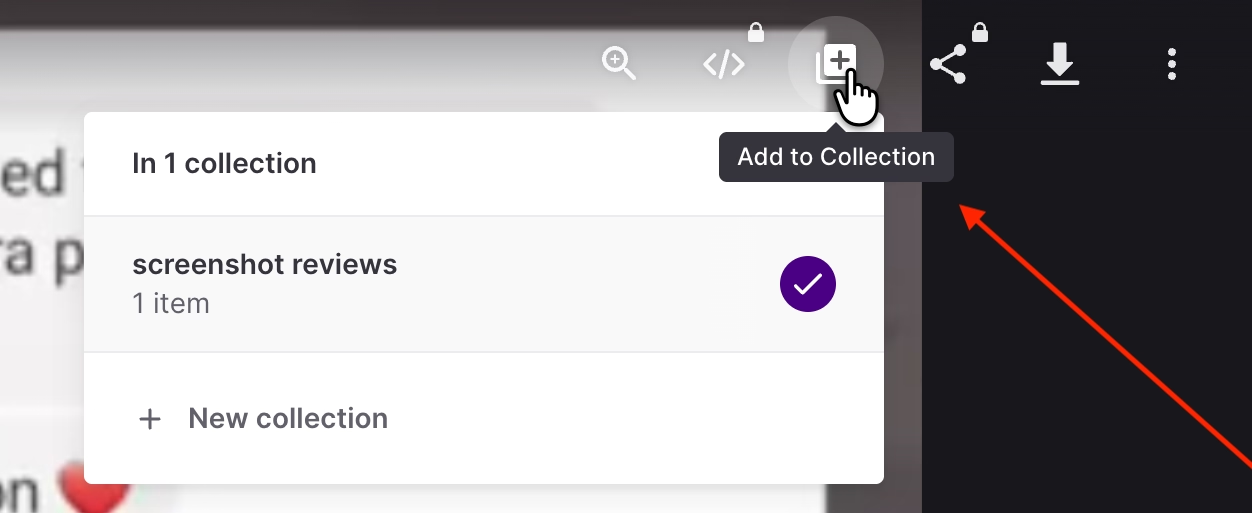
Because collections are just views over your canonical assets, they stay up to date too. If you update an asset in Dash, it updates in the collection, so shared links always reflect the latest content without extra work.
[fs-toc-omit] Quick share links: For one-offs
Sometimes a designer needs one image, or an agency wants to reference a specific piece of UGC.
Quick share links let you generate a link to individual assets in seconds. You choose whether they can view only or download, set an expiry date, or choose no expiry at all.
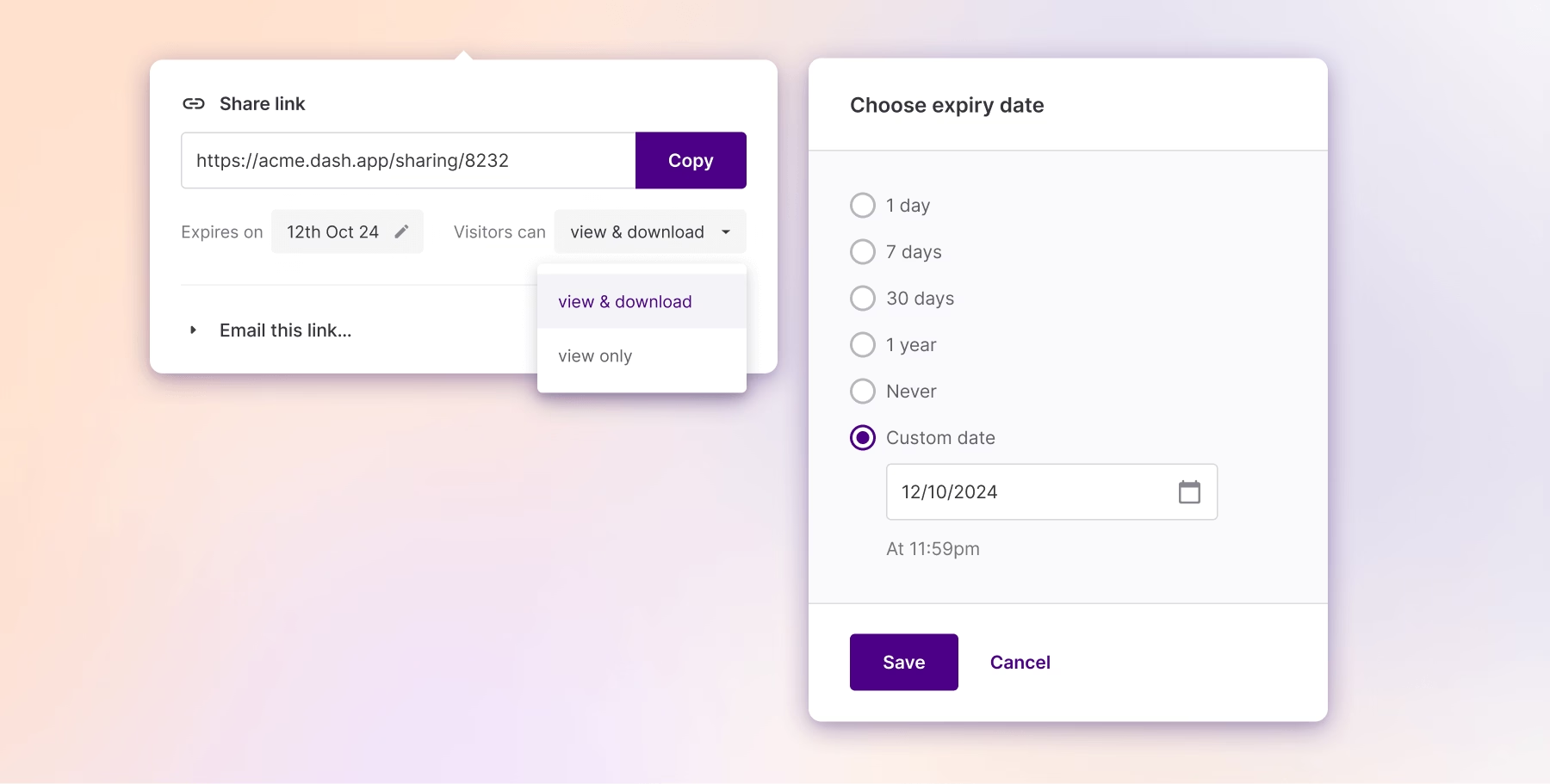
You can also see and manage all your active share links directly in Dash: here’s how.
Ready to really use your UGC?
Two things are clear.
First, if you’re serious about user-generated content: collecting it, organising it, and deploying it week after week, you need a DAM. Not eventually, not once things get messy—now.
Second, I’m obviously not neutral on which DAM to choose. But that bias is because of what companies like RevAir, Forthglade, Reebok, Ethnotek, and Mountain Equipment are already doing with Dash.
If you're in the market for a DAM and want to compare your options, we have a comparison worksheet that'll help you decide.
You can also try Dash for yourself. Get a 14-day free trial, no credit card required.
.avif)
Brinda Gulati is a fractional content marketer and former thrift store owner who writes, reads, and speaks commerce and SaaS. She has two degrees in Creative Writing from the University of Warwick, and believes that above all, stories are a deeply human endeavour.